Month: July 2025

  • Gmail Archive vs. Delete: Which Should You Choose & When?

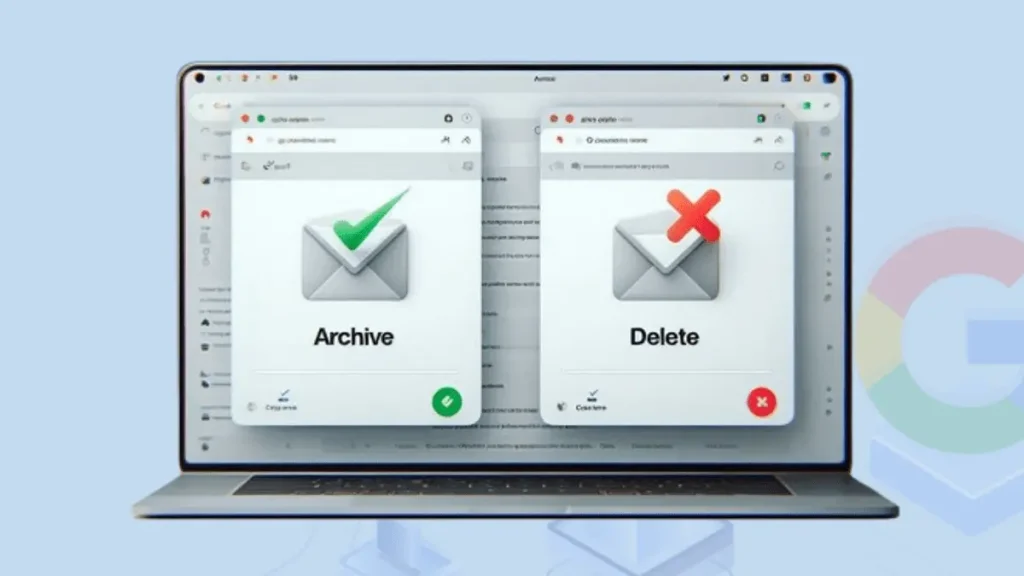
    Are you searching for a guide to understand the difference between Archive and Delete in Gmail? Here, we will learn briefly about the Gmail archive vs. delete. You will get everything regarding the Gmail archive and Gmail deletes in detail. Gmail users have lots of queries, including: Do archiving emails save space in Gmail? Does archive mean removing emails permanently? Do archived emails get deleted? What is the difference between Gmail Archive and Delete? Which and When to Use? All these questions will be answered in this blog.

    Table of Content

    Let’s briefly explore the Gmail archive and delete

    In this section, we will explore the Gmail archive and delete; also, we will list a few key features of both archive and delete.

    What is Gmail Archive?

    Archiving emails in Gmail helps users remove the selected emails from their Inbox but not delete them from Gmail. After archiving, the emails will move to All Mail from the Inbox folder. The emails will still be in Gmail but won’t clutter the Inbox once archived. Users can easily keep a record of important emails that they might need in the future by archiving Gmail emails.

    Advantages of Gmail Archive:

    • Users can effectively manage their inboxes even if the essential emails are still in All Mail.
    • Gmail allows users to find their archived emails anytime, as these will not be removed from the account.
    • The archived emails will be kept safe from various unfamiliar situations, including accidental data loss, malware attacks, etc.

    How to Archive the Gmail emails?

    Step 1: Open Gmail on your browser and log in with your account.

    Step 2: Choose the emails you want to archive in the Gmail.

    Step3: After selecting the emails, click the Archive button.
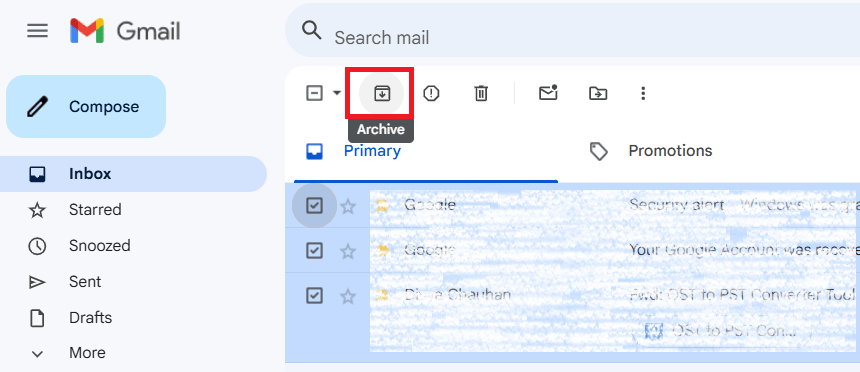
    Archive Gmail Emails

    Step 4: After that, all the selected emails will be archived in All Mail but removed from the Inbox folder.

    What is Gmail Delete?

    Gmail delete means removing an email from a Gmail account. After deleting an email, it will go to the trash folder, and the email will automatically disappear permanently from Gmail after 30 days. During the retention period of 30 days, when emails are in the trash folder, users can easily retrieve their emails in the Inbox folder.

    Advantages of Gmail Delete:

    • Users can efficiently free up storage in their Gmail account if they are running out of space.
    • Emails that users do not need anymore; they can remove emails permanently from their Gmail account.
    • If there are any duplicate emails, you can easily manage them by deleting identical ones.

    How to delete the Gmail emails?

    Step 1: Open your Inbox after logging into the Gmail account.

    Step 2: Pick the emails you want to delete from the Gmail.

    Step3: After selecting emails, click the delete button or trash icon.
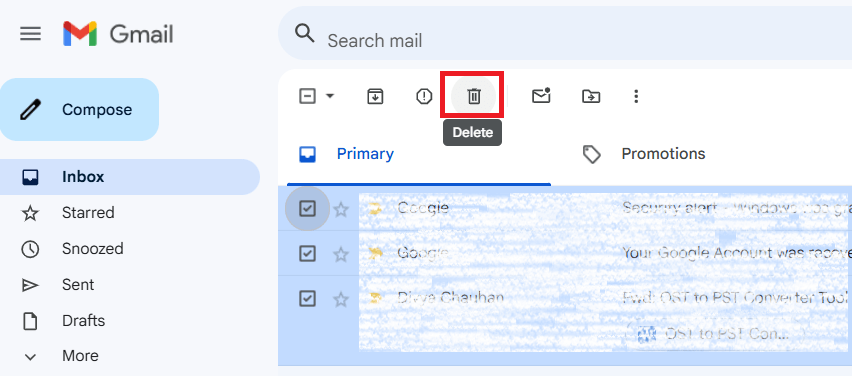
    Delete Gmail Emails

    The emails will be moved to the trash folder after following the above steps.

    Understanding Key Differences: Gmail Archive vs. Delete

    We will use a simple table to know the differences between Gmail archive and delete. This will help you understand quickly what, when and which you should choose.

    FeaturesArchiveDelete
    StorageIt doesn’t reduce Gmail storage.Helps free up storage in Gmail.
    RecoverableUsers can easily find and recover the archived emails.Only recovered within 30 days from Trash folder. After this period, users will lose emails permanently.
    VisibleUsers can find archive emails in Gmail All Mail folder.Move emails to trash that you can find till 30 days after deleting.
    When to UseThat emails you will be needed in the future but want to avoid cluttering in Inbox.Emails that you do not need any more in your Gmail account.

    These are the key differences between the Gmail archive and delete. Now, we will move to know the answer to a few questions related to the Gmail archive and delete.

    Common queries on archiving the Gmail emails:

    1. Does archive mean delete?

    No, archiving doesn’t mean deleting emails from the Gmail account. Archive emails simply help you to avoid clutter in the Inbox by moving them to the All Mail folder; only deleting means permanently removing emails from the Gmail account. Deleting emails will go to the trash folder and can permanently disappear after 30 days from the trash folder.

    2. Does archived emails get deleted?

    No, the archived emails don’t get deleted, except if you intentionally deleted them. They will remain in the All Mail or other folder in which you archived them until you unarchive them. Moreover, archived emails will still be a part of Gmail and take Gmail storage.

    3. Does the archive email save space in your Gmail account?

    No, archive emails don’t help free up space in the Gmail account. After archiving emails, they will go to All Mail from the Inbox folder but will still be in the Gmail account. So, archiving emails won’t light up the load on Gmail storage.

    If you want to save space along with holding the essential emails in the archive, use the Shoviv Gmail Backup and Restore Tool. This software allows users to save archived emails locally into various file formats, like PST, EML, MSG, etc. Using this tool, users can archive emails on their PC locally and free up Gmail storage.

    When Should You Archive and Delete Gmail Emails?

    Archive:

    • To keep a record of the emails you might need in the future but want to prevent your Inbox from cluttering.
    • You want to manage your Inbox emails but not looking to compromise with essential emails.
    • This protects emails from future mishaps, like accidental data deletion, unauthorized access, and many more.

    Delete:

    • Emails that you don’t need any longer in your Inbox and want to free up Gmail storage.
    • Older emails that you do not require in the future for any reference.
    • To manage duplicate items in the Gmail account, you can delete emails.

    Summing Up

    Gmail Archive and Delete are both features of Gmail that fulfil different purposes for the users. This blog shares a detailed view of when you should choose to archive and delete emails from Gmail. Moreover, we also shared key points on Gmail Archive vs. Delete, along with a simple table.

    Try the Shoviv Gmail Backup and Restore Tool to save archive emails locally and free up storage in Gmail. This software is easy to use and shares various file formats to save archived emails into the local drive of your PC. Run its free demo version on your device to explore its functionality and features by processing the first 50 items for free.

  • How to Backup Kerio Email into External Drive?

    What are the reasons for Kerio Email Backup?

    Saving Kerio Connect Email into an External Drive provides multiple benefits. Below are some reasons and benefits you can avail yourself by backing up your Kerio Connect mailboxes.

    • Accessing your Kerio emails is effortless, with a backup copy ensuring availability regardless of location or time.
    • Keep yourself shielded from unexpected events by frequently backing up your Kerio emails and organizing your inbox to prevent unwanted scenarios. Even amidst a hacking incident, your data will stay shielded within the external drive, ensuring its security.
    • Enhance your efficiency by consolidating the backup of several Kerio user mailboxes into a single, streamlined process, saving time and effort.
    • Managing the risk of data loss stemming from diverse causes, spanning accidental deletions and the looming threat of unauthorized entry into sensitive information.
    • Local storage ensures data accessibility even offline, providing continuity irrespective of network availability.
    • If you export Kerio email to PST, you can open and access all your emails in any Outlook account by adding PST.

    In today’s digital landscape, there is a surge of interest among individuals seeking a solution to transfer their Kerio Connects mailboxes into their External Drives. If you are among them, stick with this blog to uncover the step-by-step process from start to finish.

    Can you manually back up the Kerio mail?

    Although there is a manual method available, it is not particularly practical. I’ll outline the steps in the following section. Below, you will find the instructions for manual Kerio email backup.

    1. Log into your Kerio account >> go to Configuration >> proceed to Archiving & Backup >> select the Backup option within the admin settings.
    2. Select the checkbox next to the option to enable message storage and configuration recovery backup.
    1. Tap to input details for the backup.
    2. Choose when and how to export, and then press OK to proceed.
    1. Go to the advanced options, specify the highest allowable size and the number of backups, and press OK to proceed.
    2. Determine the destination folder within the Target Backup Directory to store your Kerio mail backup.
    3. If you need to authenticate on the network drive, choose Specify and type in your login credentials.
    4. Enter your email address into the Notification section to ensure you receive timely updates regarding backups.
    5. Click Apply and proceed by activating the Start Now option.

    Read It Before Using Manual Way- During the endeavor to implement manual backup procedures for the Kerio Connect mail server, numerous users encountered perplexity and became entangled in the process. Their attempts proved futile, stalling any progress they hoped to make. Moreover, you will not get any advanced option to customize your results as per your requirements. If you are not technically sound, then don’t try manual backup as it can risk your data.

    If you seek to safeguard your data while transitioning to a desired file format, consider employing Shoviv IMAP Backup Email Software for a secure backup process.

    Some Prominent Features of the Shoviv IMAP Backup and Restore Tool

    • This tool harmonizes effortlessly with diverse email clients, including Kerio Mail, Gmail, SquirrelMail, Yandex Mail, Yahoo! Mail, and any IMAP-using email service.
    • It works on job-driven processing, it enables users to generate and execute a multitude of tasks concurrently.
    • This software can help all Windows Operating System users to download their emails in the desired format.
    • Kerio email backup can be taken into PST, MBOX, EML, HTML, MHT, and MSG.
    • With the help of advanced filter settings, users can selectively back up Kerio Connect mailbox items.
    • Moreover, users can schedule the backup process as per the requirement.
    • As its name specifies; this utility can also import/restore data into the mailbox from the files.
    • This application boasts reliability and trustworthiness, crafted by a seasoned team of professional, well-versed backup solutions.

    Shoviv IMAP Backup and Restore tool is the most secure and trusted email backup application suggested by many adepts. This software can help you overcome all the manual method’s drawbacks easily. Follow these steps to backup emails from Kerio Connects:

    Mastering the Technique of Archiving Kerio Emails to Your External Device

    • Start with installing the Shoviv IMAP Backup and Restore AKA Kerio Mail Backup Tool application, then open it.
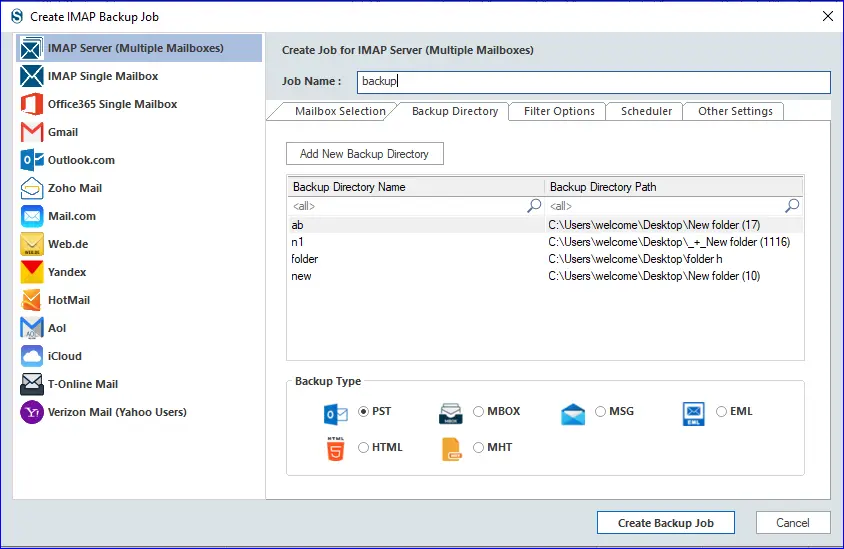
    • Select the Backup Job option. A pop-up window will open where you can enter the Job Name.
    Create Kerio mail backup job
    • Choose the Add Mailbox option, input your login information to fetch the mailboxes, and proceed to click on the Backup Directory tab.
    Enter email and Password
    • Determine the location for saving your backup file by selecting the appropriate directory. Then, use the dashboard to choose your preferred file format. Here, we will choose Kerio emails as we want to export Kerio emails to PST.
    Choose backup type as PST
    • Head to the filter setting and select the criteria to omit unnecessary emails from the backup procedure.
    Kerio Email Backup
    • Open the Scheduler tab and arrange the backup procedure as per the needed schedule.
    schedule newly created job (Optional)
    • Finally, please navigate to the additional settings tab and adjust them to your preferences. When everything is set, press the Create Backup Job button to proceed.
    Backup Kerio Email finishes

    Following the above process, you can successfully back up Kerio emails into external drives.

  • How to Import OLM File to Gmail (GWS) Business Emails?

    These days, every organization almost relies on emails to communicate, and managing a large number of emails is tricky. Some users use Outlook for Mac, which stores emails into OLM files. Sometimes, users need to switch to Gmail and know how to import OLM to Gmail business emails (GWS). Moreover, this process allows users to access their essential data quickly, especially for big enterprises.

    Gmail is an email client known for its simple user interface and advanced or user-centric features. Users can manage their business emails effectively after switching to Gmail or Google Workspace. So, moving to Google Workspace from other email platforms, like Outlook for Mac, has become a trend.

    However, importing OLM files to G Suite or Gmail business emails is challenging. Therefore, users learn the entire process step-by-step to move OLM files without hassle. This blog will teach you in detail how you can import OLM files to Gmail business emails or G Suite securely and quickly.

    Table of Content

    Why do users adapt Gmail Business over Outlook for Mac?

    There could not be a specific reason for importing OLM to Gmail business emails or G Suite. Users consider this migration for multiple reasons, some of which are as follows.

    • It has a simple GUI, so it’s easy for users to find and manage their emails.
    • G Suite is a cloud-based platform that allows users to access their emails from anywhere with the internet.
    • Moreover, it integrates with other Google Services, such as Google Calendar, Drive, Meet, etc. So, it simplifies the process for users to keep all their data in an organized way.
    • It comes with an impactful security feature and allows users to keep spam emails out of their inboxes.
    • Using Gmail Business, multiple users can work together and edit documents or files in real time.

    Because of these advantages, users switch to Gmail business emails or Google Workspace. If you are searching for a simple way to import OLM to Gmail business emails, your wait will be over in the upcoming section.

    A manual practice to import OLM to Google Workspace

    You can use manual and professional solutions to import Mac OLM files into Gmail business emails. Moreover, you must configure a Gmail business account to Outlook for Mac to import OML data, including emails, calendars, and other data to process manually. We will cover this manual technique in three phases to import OLM to Gmail business or G Suite. Let us begin to understand the process step-by-step.

    Simple steps to import OLM to Gmail business emails

    The first phase of this solution will teach you how to configure your Gmail account on IMAP and move forward to importing OLM to Google Workspace. Then, we will configure the Gmail account to Microsoft Outlook for Mac. Let us understand the detailed steps to use this solution.

    Phase 1: Set up your Gmail Account for IMAP

    • Open Gmail and sign in with your Gmail account and password.
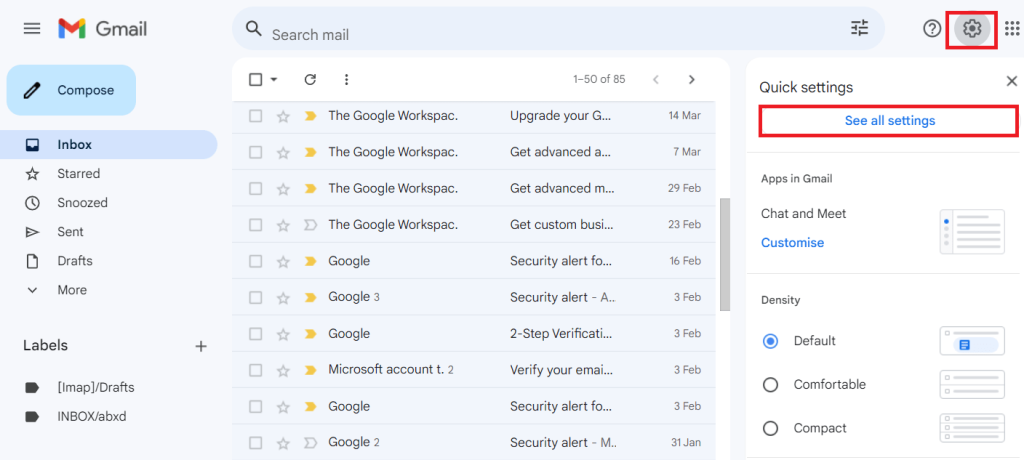
    • Then, press the Settings tab and click the See all settings option.
    Enable IMAP for Gmail to Import OML file
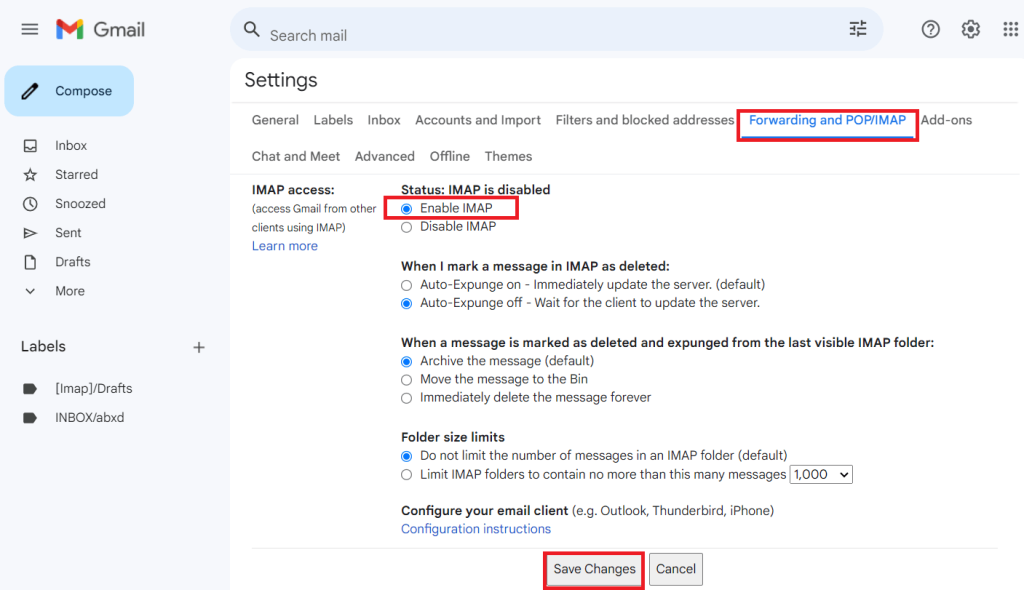
    • Choose the Forwarding POP/IMAP from the Settings page.
    • After that, select the Enable IMAP option in the IMAP access tab and hit the Save changes.
    Cheick Forwarding settings

    Once completed the above steps, you will be done with setting up a Gmail account for IMAP. Now, we will understand the following process for importing OLM to Gmail business emails or G Suite.

    Phase 2: Add your Gmail account in Outlook for Mac

    This process can be particular for each user, depending on their Mac Outlook version. Here, we will share the steps for Mac Outlook, such as Outlook 2011, 2016, and 2019. Kindly follow the steps to import OLM files to Gmail Business or Google Workspace.

    Adding Gmail account in Mac Outlook 2016/ 2019:
    • Launch the Outlook application for Mac.
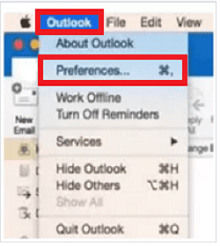
    • Select Outlook from the ribbon bar and navigate to the Preferences option.
    Import OLM to Gmail in MAC Outlook
    • Then, tap the Accounts option in the Preferences window.
    • After that, press the (+) button and click the New Account option.
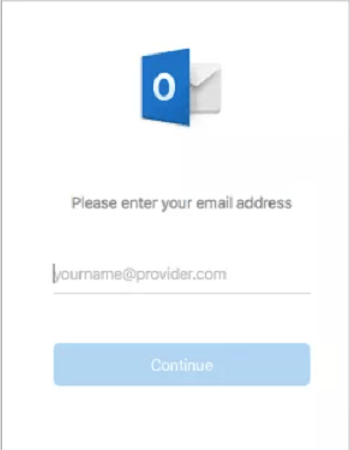
    • Enter your Gmail address and click the Continue button.
    Import OLM to Gmail (Enter your Email address)
    • Now, the Google sign-in window will open. Here, enter the Gmail password and hit the Next button.
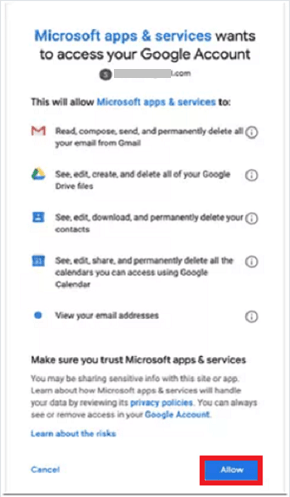
    • After that, click the Allow button to grant permission.
    Allow Gmail to Read your Email information
    • Your Gmail account will be configured on Outlook for Mac. Tap Done to finish.

    Follow these steps to add a Gmail account on Outlook for Mac if you work on Mac Outlook 2016 or 2019.

    Configuring Gmail account in Outlook for Mac 2011:
    • Open Microsoft Outlook on your Mac.
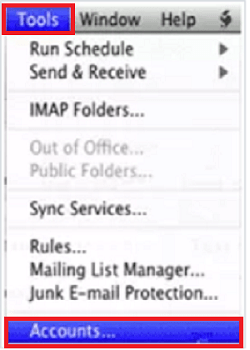
    • Navigate to the Tools in the menu bar.
    • After that, select the Accounts option from the Tools drop-down.
    Configure your Outlook account with Gmail
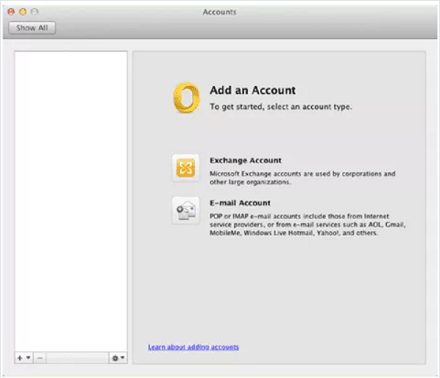
    • Click the (+) sign and continue with the Email option.
    Add your Account to Import OLM file
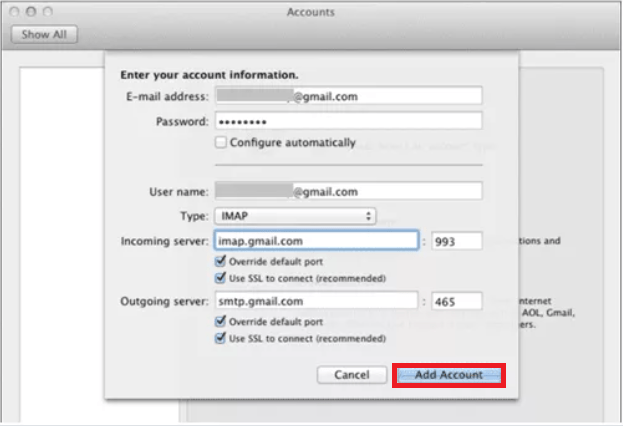
    • Then, type your name, fill in the Gmail address and password. After entering the details, click the Add Account button.
    Enter Server details
    • Thereafter, select IMAP as the account type and enter incoming and outgoing server details if required.
    • Finally, hit the OK button to add your Gmail account to Mac Outlook 2011.

    Phase 3: Import OLM to Google Workspace or Gmail business emails

    • Select the folder that contains OLM files and right-click on it.
    • Then, click the Copy or Move to Folder option.
    • Select the Gmail label name from the new dialogue box and tap the Copy.
    • Choose the Send/Receive option to import OLM files to Gmail Business emails.

    This is the complete procedure of working with the manual solution to add a Gmail account into Outlook for Mac. This solution is free but has some common limitations that can affect the import process.

    Limitations of importing OLM to Gmail manually

    Users will face many limitations when processing OLM files for Google Workspace emails. Before importing OLM files, users must first understand the complexities of the manual solution.

    • This solution can take a long period when users are looking to import multiple OLM files to Gmail business emails.
    • Moreover, this may result in permanently losing OLM file data, like emails and attachments, if users perform a single step abruptly.
    • Users need a good grasp of technical knowledge to import OLM files manually into Google Workspace.
    • This method may affect the original folder hierarchy of the emails when moving OLM to G Suite or Gmail business.

    These limitations might complicate for users to move their OLM files from Mac Outlook to Gmail business.

    Professional OLM to Google Workspace Migration Tool

    Users can find various automated tools online to import OLM to Gmail business emails. However, the Shoviv G Suite Backup and Restore Tool is at the top and recommended by professionals worldwide. This software allows users to process multiple OLM files to their business Gmail account or Google Workspace in a single click.

    When users work with this professional software, no limitations will be applied to add multiple and large OLM files. Users can quickly restore or import OLM files directly to their business Gmail account. Also, the tool permits users to back up G Suite emails in numerous file formats, like PST, EMLMBOXMSG, etc.

    It has an intuitive GUI that streamlines the process for users to move their OLM file data effectively into their Gmail account. The toll also has a filter option to select only specific items to include or exclude from the importing or restoring process.

    Quick Instructions to import OLM to Gmail

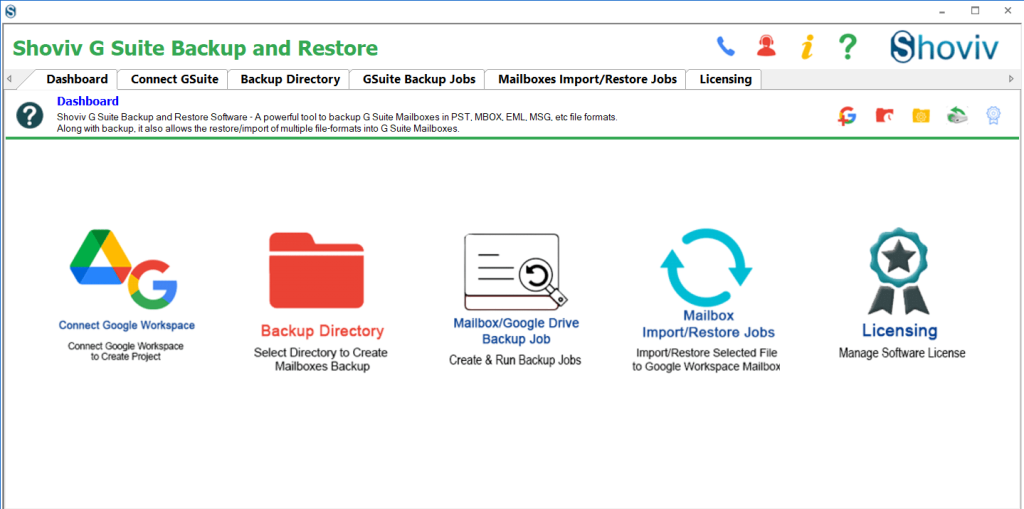
    • Open the Shoviv G Suite Backup and Restore Tool once it gets downloaded on your device.
    Create a OLM file restore job
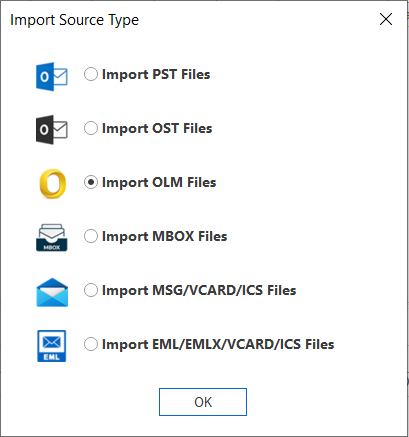
    • Then, click the Mailbox Import/ Restore Jobs tab, select the Import OLM files option, and tap the OK button.
    Select your OLM file
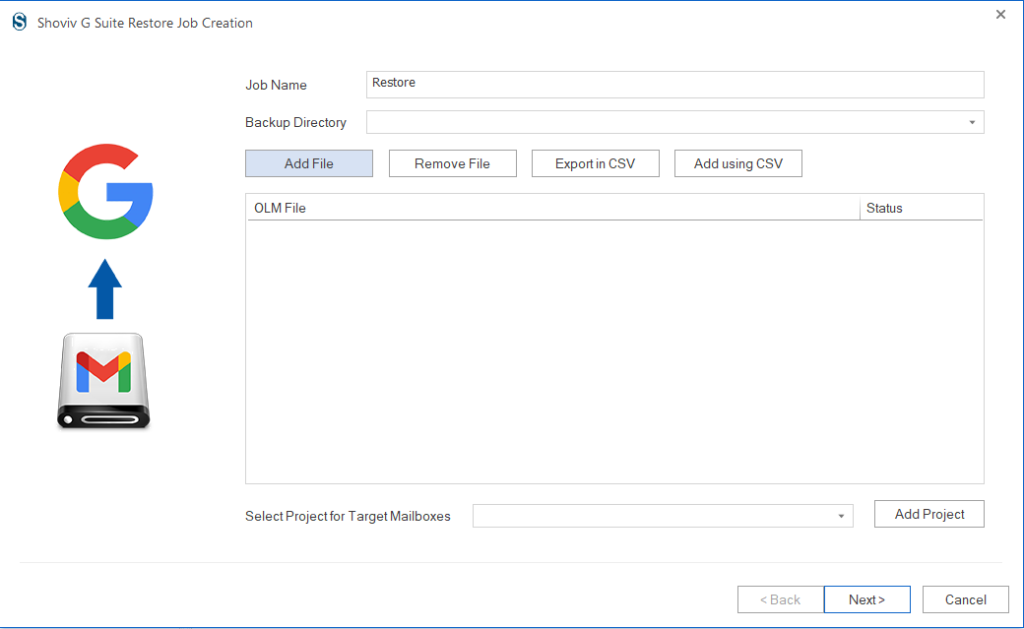
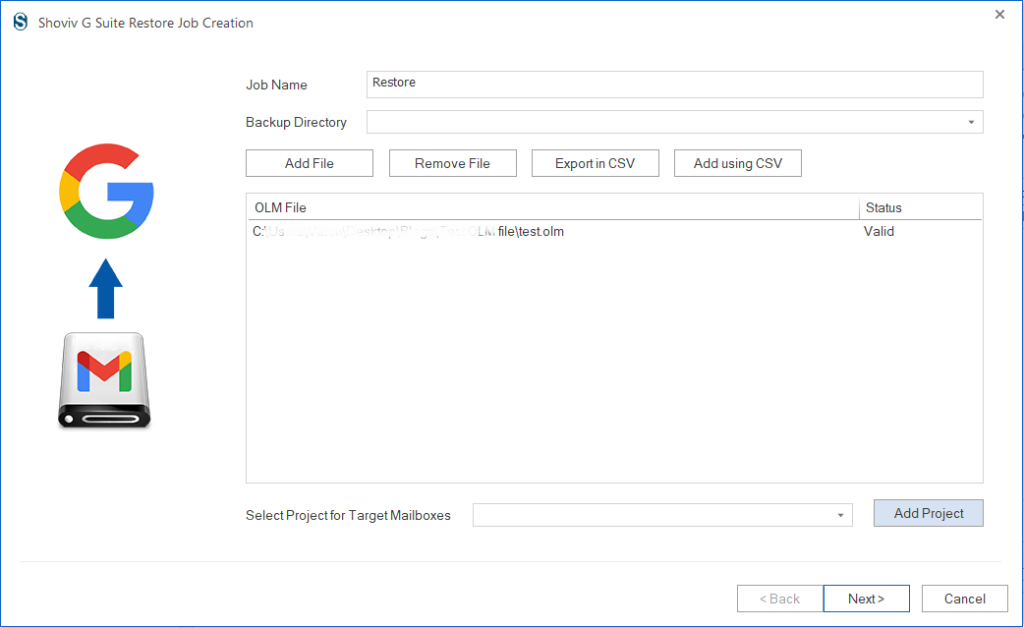
    • Enter the job name and click the Add File button to add the OLM files to the process.
    Name your Restore job
    • After adding the OLM file, continue with the Add Project option.
    Add Target folder
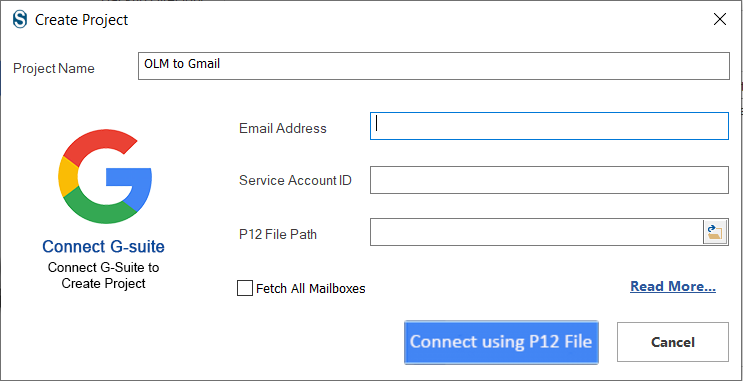
    • Then, provide the project name, email address, and other details. After filling in all the details, hit connect using the P12 File button.
    Create p12 path to restore OLM emails
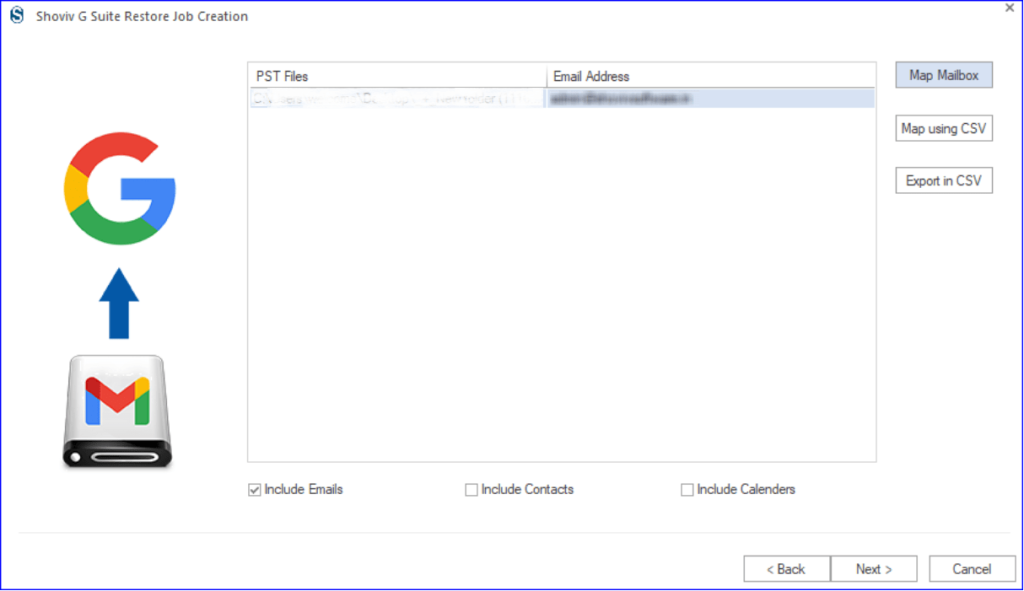
    • Now, map the source mailbox to the target and click Next.
    MAP OLM with your Google Workspace Account
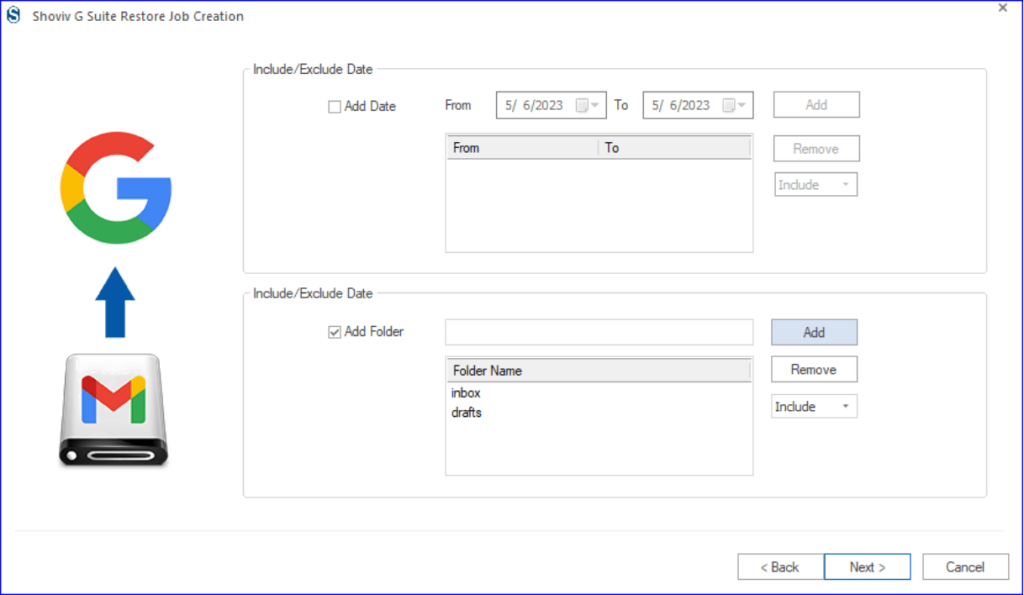
    • Filter by date or folder to include or exclude items during the OLM files importing task. Thereafter, tap the Next button.
    Filter unwanted Email items
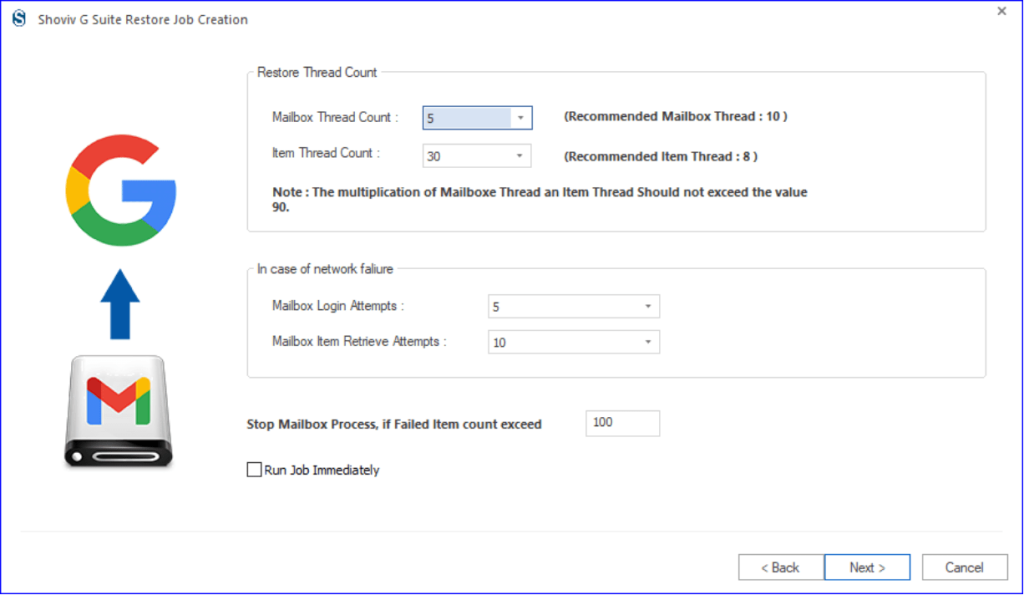
    • Make changes per your preference on the Settings page. Also, check the Run Job Immediately checkbox to process OLM files just after creating the Job and click Next.
    Use thread Count to maximize restore process
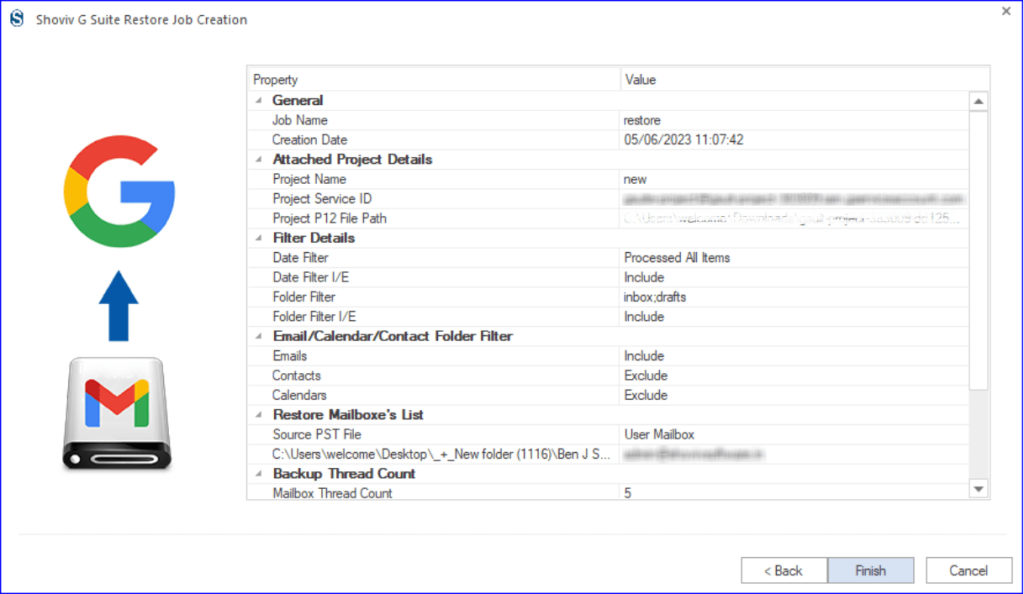
    • Tap the Finish button after following these steps to import OLM to Gmail business emails.
    OML file to Gmail Import Process complete

    Ending Words

    Users who want to switch from their Outlook for Mac to Google Workspace cloud platform can implement manual and professional solutions. The manual method has some common limitations, which can become significant if users have multiple and large-sized OLM files. Moreover, users need to technically advance to manually import OLM to Gmail business or Google Workspace.

    Hence, users must use the Shoviv G Suite Backup and Restore tool to import OLM files to Google Workspace or G Suite seamlessly. It offers a simple user interface; any user can process OLM importing or restoring tasks. This tool also comes with a free test version, which users can use to process 50 items from each folder of the OLM files to Gmail business emails or G Suite.

  • How to Backup and Restore Emails in Webmail?

    Emails have now become a crucial part of communication at the personal and professional levels. Each user should have a backup solution to save or download their Webmail emails (Gmail, Outlook.com, HostGator, Blue Host, etc. This guide will share the complete stepwise instructions for the Webmail backup and restore process. Here, users will learn the simple and easy-to-follow solutions to restore and backup Webmail email data.

    Users will get manual and professional ways to download Webmail emails to the hard drive or local folder. So, let us discuss the reasons for and methods of exporting Webmail emails without taking any ado.

    Table of Content

    Why backing up Webmail emails is necessary?

    To simplify the Webmail backup task, users must understand the benefits of saving Webmail emails locally. Learn the reasons in the points below and then know the solutions to download/back up Webmail emails.

    • Webmail data security: If users have a backup, they can easily avoid disrupting situations, like accidental data loss, restore data if someone hacked their account, etc.
    • Clearing old emails: Sometimes, users need to free up space in the Webmail. In that case, users can back up old emails and delete them later to free up space.
    • Archive important emails: By backing up the Webmail emails, users can archive the essential emails for future reference. Users can easily use the archive if they need it later.

    Let us now explore the backup and restore process of the Webmail emails.

    Trusted ways to back up emails in Webmail

    Users can go through several methods to back up Webmail, such as Outlook.com, HostGator, Blue Host, etc., to the local folder. We will know each solution in detail to back up or restore Webmail emails.

    To backup emails from specific Webmail (Outlook.com, Gmail and Yahoo):

    1. Export Outlook.com or Outlook web emails

    2. Back up Gmail emails

    3. Download/Export Yahoo emails

    We will use the Outlook and Thunderbird desktop applications to back up other webmail emails on the local drive.

    Method 1: Back up Webmail emails using the Outlook desktop software

    If your Webmail doesn’t offer a direct way to download Webmail emails for backup, you can use the Outlook email client to back up your Webmail emails. This process will help users export Webmail emails to PST format; see the steps below.

    • Open the Outlook program and configure your Webmail account using IMAP. (HostGator, Blue Host, etc.).
    • Then, navigate to the File tab, Account Settings and click the Account Settings option.
    • Now, select your configured Webmail email account and tap the Change button.
    • Ensure that the account is configured with IMAP and click the Next button. Wait till Outlook syncs all your Webmail data.
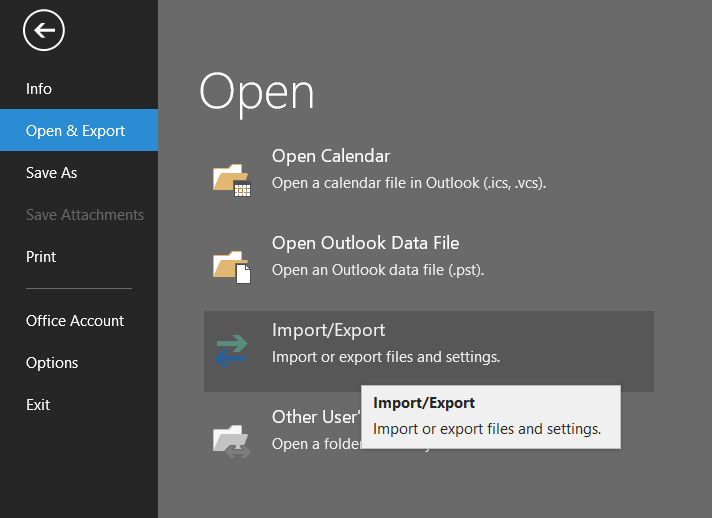
    • After that, move to the File section, choose Open & Export and click the Import/Export option.
    Webmail email backup
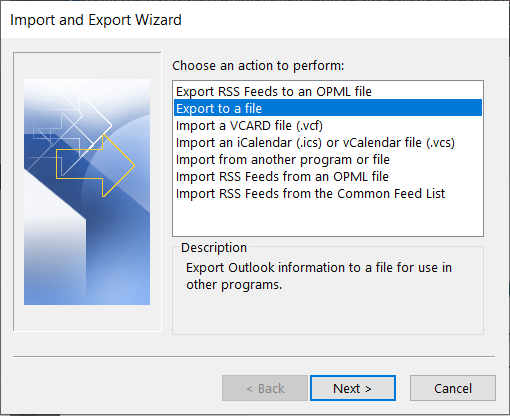
    • Select the Export to a file option and click the Next button.
    download webmail
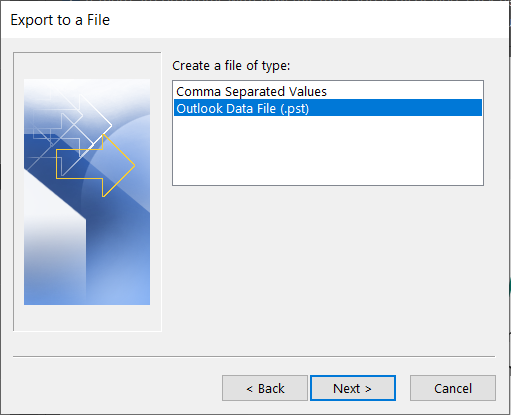
    • Thereafter, choose the Outlook data file (.pst) and continue with the Next.
    save webmail 9Choose data file ,pst0
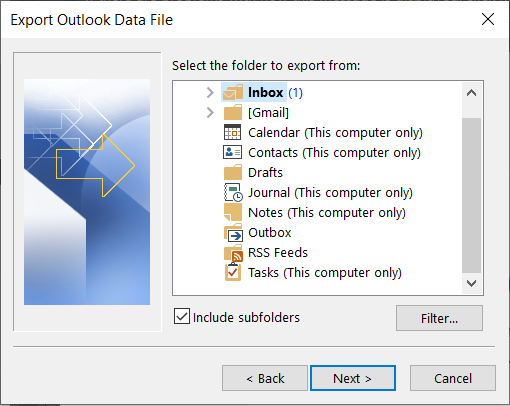
    • Pick the folders and subfolders to backup, and click the Next button.
    Select folders to export from Webmail
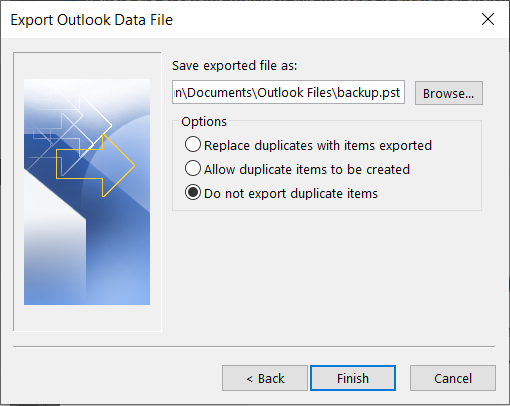
    • Then, tap the Browse to select the location where you want to save resultant PST and click the Finish button.
     Export webmail to PST(browse local location to export)

    Now, the Outlook program will start exporting your Webmail emails to PST format. Once the backup is done, navigate to the PST file location and verify the PST file containing all emails.

    Method 2: Use the Thunderbird desktop application for Webmail email backup

    Download and install the Mozilla Thunderbird client to download Webmail emails. This method will back up webmail emails in MBOX format.

    • Launch the Mozilla Thunderbird app on your device and set up your Webmail account using IMAP.
    • After setting up your Webmail account, the app will sync all your emails.
    • Once synced, navigate to the Tools section, select the Export Profile and choose to export the entire profile or only mail. Then, click the OK button.
    • Thereafter, the Thunderbird app will create a backup of your Webmail emails. You can save the backup file to the desired location on their local storage.

    These two ways can be used to back up Webmail emails to the local folder. Now, we will know how to restore Webmail emails to the external drive.

    Solutions to restore Webmail emails using Outlook & Thunderbird

    For users who are using email clients, the option to restore emails directly to the Webmail account, like Gmail, Outlook, etc., from the MBOX and PST file formats.

    Moreover, if your Webmail doesn’t provide a way to restore Webmail emails, you can use the Outlook & Thunderbird programs to do so.

    Solution 1: Restore Webmail emails using the Microsoft Outlook

    If you have the Webmail email data in PST format, you can quickly restore Webmail emails. Make sure you have configured your Webmail account on Outlook, and then follow the below steps.

    • Start your Microsoft Outlook application.
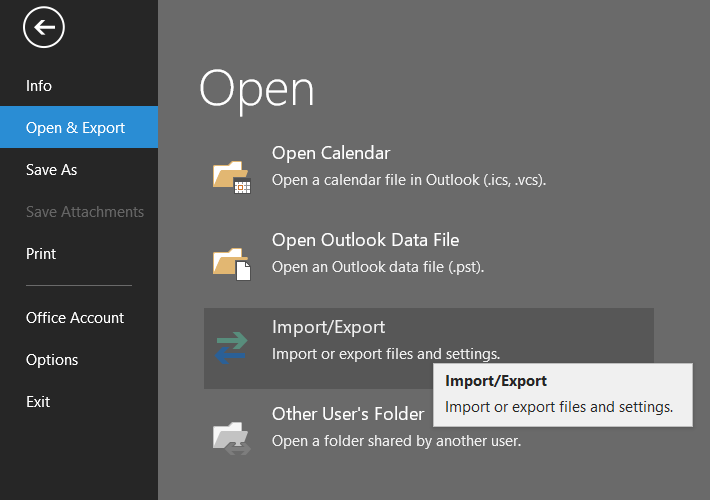
    • Then, arrive at the File tab, select the Open & Export and tap the Import/Export option.
    Restore webmail emails from backup
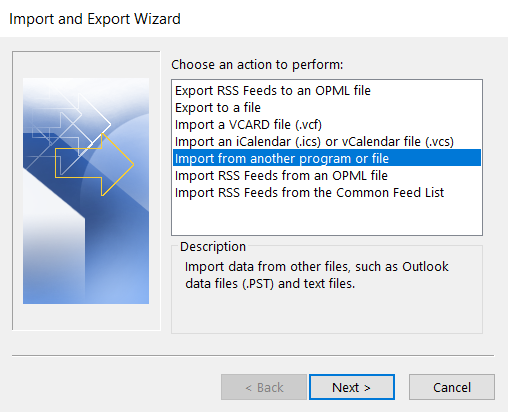
    • After that, choose the Import from another program or file option and hit the Next button.
    Choose from another program or file
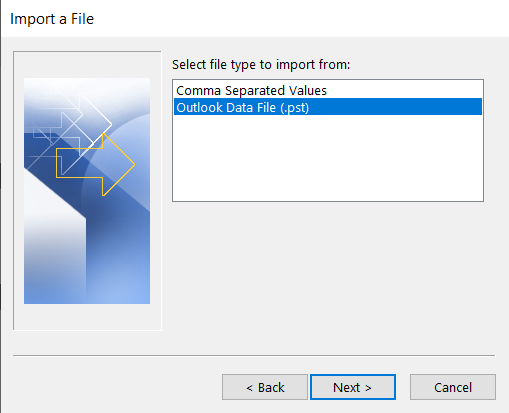
    • Now, select the Outlook data file (.pst) option.
    Choose Outlook data file
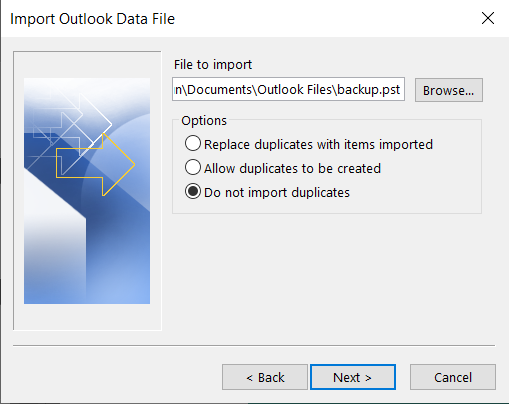
    • Next, browse the backup file location and click the Import button.
    Select your backup file
    • Finally, your emails will be restored to the Webmail account.
    Select your file and click finish

    By performing these steps, you can effectively restore Webmail emails from PST file format using the Outlook program.

    Solution 2: Mozilla Thunderbird to restore Webmail emails

    If you have Webmail emails backed up in MBOX format, you can use the Thunderbird app to restore them. The steps are as follows:

    • Open the Thunderbird software to proceed with the Webmail email restore task.
    • After that, move to the Tools and select the Import Profile option.
    • Then, tap the Browse and choose the backup file (MBOX). Give a name to the profile and click the Next button.
    • Once done, the app will start restoring emails to the Webmail account if you have configured it on the Thunderbird using IMAP.

    We hope you now understand the process for Webmail email backup and restore tasks. However, these manual tricks can take too much time and affect the Webmail data. Fortunately, users can also try the Shoviv IMAP Backup and Restore Tool to back up or restore Webmail emails.

    One Stop Way to Back up & Restore Webmail emails:

    Shoviv IMAP Backup and Restore Tool is a professional way to back up and even restore Webmail emails effortlessly. It works without any restrictions on the size and number of emails. This software allows users to back up Webmail emails in various file formats, including PST, MSG, MBOX, and EML. Along with that, users can also restore their Webmail emails from several file formats, like PST, OST, MSG, MBOX, etc.

    It allows users to use the date range and folder filters to select the only items they want to back up. Users can also create and run multiple backup or restore projects in parallel for a quick backup of Webmail emails. It also supports all IMAP-using email clients, including Gmail, Outlook, Thunderbird, Blue Host, HostGator, etc.

    • This tool offers the facility to avoid duplicate items in the target Webmail account.
    • In addition, users can set the resultant PST file size to prevent oversized PST file issues.
    • Backup and restore webmail emails without any size or count restrictions.
    • It also offers a simple user interface; every user can back up Webmail emails.
    • Users can also try its free demo version on their system to check its efficiency and functionality.

    Working procedure of the Shoviv IMAP Backup and Restore Tool:

    Steps to back up Webmail emails:

    • Open the tool and create the backup directory for Webmail email backup.
    • Now, click the Backup Jobs and create a backup project to download Webmail emails.
    • Then, enter your Webmail account details to connect it as the source.
    • Give a name to the backup job, map the source to the target, and select the backup directory.
    • After that, filter items using the folder and date range and use the scheduler to automate backup.
    • Make other changes on the settings page and click the Create Backup Job button.

    Steps to restore Webmail emails:

    • Start the Shoviv IMAP Backup and Restore Tool.
    • Create a backup directory from the location where you want to restore Webmail emails.
    • After that, tap the Restore Jobs and select the file format to restore.
    • Add the backup directory, enter the restore job name and your Webmail details, map the source to the target, and click Next.
    • Then, set the date range and folder criteria to filter items.
    • Modify restore project details on the settings page.
    • Lastly, review the complete Webmail restore project and click the Finish button.

    The Closing Thoughts!

    Backup and restore tasks are crucial for startup, mid and large-scale organizations to maintain their confidential data. However, using traditional methods to back up and restore Webmail emails is challenging. Moreover, the backup and restore tasks can take ample time to complete.

    Users can use the Shoviv IMAP Backup and Restore Tool to quickly and effortlessly back up Webmail emails. Users can also use this tool to restore Webmail emails. So, they can easily manage both processes (backup and restore) with the help of a single platform.

Enter To Win
Privacy Overview

This website uses cookies so that we can provide you with the best user experience possible. Cookie information is stored in your browser and performs functions such as recognising you when you return to our website and helping our team to understand which sections of the website you find most interesting and useful.