
Author: admin

  • How Can You Back Up Google Calendar?

    How Can You Back Up Google Calendar?

    We are in a digital world where humans rely on technology for daily tasks. In Everyday life, the calendar plays a crucial role; I am not talking about the traditional paper calendar but the digital calendar that lets users manage their to-do tasks, meetings, and other appointments. Today, most organizations and businesspersons are using Google Calendar to organize their meetings and appointments. Its frequent use makes it an important part of everyday life, and several tech businesspersons prefer Google Calendar backup frequently. However, only a few users know how to back up Google calendars.

    If you’re here reading this blog, you might be one of those users who don’t know how to back Google calendars and are looking for an easy way to do it. If so, you’re on the right blog; this write-up will discuss how to create a Google Calendar backup. But before diving into the ways, let us mention some of the common reasons why users need Google Calendar backup.

    Table of Content

    Reasons to Keep Google Calendar Backup

    Having a Google Calendar Backup has several benefits, and also there are several instances where Google Calendar will come in handy. Below are some of the reasons why you should keep a Google Calendar backup.

    • Protect against data loss: Undoubtedly, Google Calendar is a renowned service, but it is still not safe from data loss. There are several instances where users or someone else intentionally deleted calendar entries, and the owner cannot recover them. Having a backup can save you from this scenario.
    • Access data offline: There can be movement when you’re working offline or having any issue with Google Calendar. To tackle this, you can back up Google Calendar and access them offline without any hassle.
    • Insurance from accidental deletion: There can be chances when you accidentally or intentionally delete your calendar appointments and might later require them. The backup will work as insurance in these scenarios.
    • Long-term storage: Nowadays, businesses completely rely on the data, which is a business backbone, whether it’s appointments or other calendar entries. You can back up your calendar entries and store them for a long time.

    Don’t worry if you don’t find a reason to back up Google Calendar, as these are only a few. You are most welcome to comment in the section. Now, the big question is How to back up Google calendars. So, let’s dive into our main topic:

    Ways to Back Up Google Calendar?

    Many users on the web have asked the same question over and over: Does Google provide any backup tool for Google Calendar backup?

    Yes, Google provides a backup tool that lets users back up their Google Calendars. Google doesn’t have any external tools, but it provides a feature that lets users export their Google Calendar to the local drive. That is its Import/export feature.

    Below is the step-by-step process, which you can use to create a Google Calendar backup without any hassle easily.

    Steps to Create Google Calendar Backup:

    • Open Google Calendar in your system.
    • Go to the My Calendar tab from the dashboard and select the calendar item you want to export or backup.
    • Following, go to settings and click on the More option to expand dropdown.
    • Click on Export Calendar from the calendar settings option and choose a location to save the calendar item to the local drive.
    • The Google Calendar will now export your item into ICS format into the local drive, which you can access anytime, even offline.

    Voila, you have successfully backed up your Google Calendar, but there are a few restrictions in the feature.

    • You cannot export multiple calendars in a single process. Hence, you have to repeat the same process over and over.
    • You cannot manually automate the process of backing up your Google calendar.
    • The process is time-consuming, and there are chances that your calendar item file may get corrupted in a few days or may become inaccessible.

    I am not threatening you; I am just waking you with the drawbacks and unwanted situations that can happen with the manual solution.  Along with this built-in feature, several professionals and administrators suggest using an automated tool called Shoviv G Suite Backup and Restore Tool to create a hassle-free and effective Google calendar backup.

    Related Blog: How to Backup Emails from Google Workspace?

    Shoviv G Suite Backup and Restore Tool

    As stated above, it is a recommended and trusted tool to back up Google calendars, and several organizations that use Google Suite for collaboration and communication must have this tool in their software pool. It is a user-friendly tool that lets even novice users easily back up their Google Suite mailbox, including calendar items, into a local drive. The best thing about the tool is its scheduler feature that lets users automate the backup process. Google Suite users can schedule the calendar backup process on a weekly, monthly, and yearly basis.

    We recommend you download and install the free Shoviv G Suite Backup and Restore tool to evaluate and check its features and compatibility.

  • How to Export Outlook Contacts to Gmail in Google Workspace?

    How to Export Outlook Contacts to Gmail in Google Workspace?

    Microsoft’s Outlook and Google’s Gmail are renowned services used by millions of users worldwide, and switching between these two email services is a trend nowadays. However, many users don’t know how to export contacts from Outlook to Gmail, and if you’re one of them, then don’t worry! In this write-up, we’ll demonstrate some of the finest ways to export Outlook contacts to Gmail, using which you can transfer your Outlook contacts to Gmail.

    Table of Content

    How do you Export Outlook contacts to Gmail Manually?

    If you’ve been using Outlook for a long time, then you might be aware of Outlook’s import/export feature that lets users export or import data from Outlook. And Gmail also allows users to manually import contacts. So here I’ll describe the complete process in two phases; in the first phase, I’ll export contacts from Outlook, and in the second phase, I’ll import those contacts into Gmail. So, let’s get started:

    Phase 1: Export Contacts from Outlook into CSV file format

    • Open an Outlook account from where you want to export contacts.
    • Now go to the File menu and click on the Open & Export option from the left pane.
    • Click Import/Export, choose Export to a file option on the following wizard, and click Next.
    • Choose A Separated Value as a file format in the next wizard and proceed by clicking the Next option on the wizard.
    • Following, you need to select the Contacts folder from the list and click Next.
    • At last, click on Finish, and Outlook will start to export Outlook contacts to CSV file format.

    So here, the first phase of exporting Outlook contacts to Gmail is finished, and now we’ll import the CSV files into Gmail.

    Phase 2: Import CSV files into Gmail

    • Open a Gmail account in your favorite browser and click on the Gmail icon from the left corner.
    • Click on the Contacts from the dropdown menu.
    • Now, the Contacts window will open. Click on the More option and hit the Import button.
    • In the next wizard, click Select and choose the CSV file created in the 1st phase.

    Voila, you’ve successfully imported the Outlook contacts’ CSV file into your Gmail account. So, it is the manual way or the only manual way available to move Outlook contacts to Gmail. Unfortunately, the manual method has several restrictions that do not make it suitable for professionals and businesspeople.

    Drawbacks of the Manual Method:

    • Manually, you can only move contacts from one Outlook account at a time. Hence, transferring Outlook contacts to Gmail from multiple accounts is not recommended.
    • You cannot filter out unwanted contacts from Outlook. You’ve to export all the contacts and then move all of them into Gmail. And if you’re using premium Gmail, then you’ve to pay a few extra bucks to store these unwanted contacts.
    • The manual method is time-consuming and has the risk of data loss; if you make any missteps, you might end up losing crucial contacts.

    If you’re one of those users or looking for a way to export Outlook contacts to Gmail for an organization, then the most trusted and suitable option for you is the Shoviv Google Workspace Backup and Restore Tool.

    Shoviv Google Workspace Backup and Restore Tool

    It is an automated tool that allows users to export contacts from Outlook(PST) to Gmail in the most effortless manner possible. The tool has been used to export contacts from over a million mailboxes, and it has worked like a charm every time. There are several features in the tool that make it a renowned and trusted tool for export contacts. Before we dive into how to export Outlook contacts to Gmail using this tool, let’s take a tour of its features.

    • The tool allows you to add multiple Outlook accounts or files and export contacts directly into a Google Workspace account.
    • It is laced with a user-oriented GUI, which makes using this tool a cakewalk. Even newbies can easily export their contacts from Outlook to Gmail.
    • The tool has a filter option to exclude unwanted contacts from exporting into Gmail. Along with the filter option, users can monitor the complete export process from the dashboard.
    • The tool is very quick and eliminates the risk of data loss when exporting Outlook contacts.
    • The tool is compatible with all versions of Outlook and Windows operating systems. Hence, you can use the tool in any system.

    Now, let’s take a look at how you can export Outlook contacts to Gmail using this tool. The process is very straightforward. You can download and install the free version of the tool to check the tool’s skills and compatibility by yourself.

    Steps to Export Outlook Contacts to Gmail (Google Workspace) Effortlessly

    • Download and install the software on your system.
    • Open the tool and go to the Restore tab from the menu bar.
    • Now choose the Export Outlook PST file option and click OK.
    • Add the Outlook file with your contacts and provide a job name for the task.
    • Click on the Map mailbox option and add the Google Workspace account in which you want to import Outlook contacts.
    • Following will be the filter wizard; utilize the option to exclude or include contacts as needed and click Next.
    • Use other advanced options accordingly and move forward by clicking Next.
    • At last, review all the settings and click Finish. Now, the software will start to export Outlook contacts to Gmail.

    Voila! It is very easy to use the Shoviv Google Workspace Import/Export Tool to transfer Outlook contacts to Gmail. Also, with its several features, it is very easy even for newbies to use the tool without any technical assistance or setup.

    Conclusion:

    Gmail and Outlook are here to stay, and there is no doubt that both email services are astounding. With the help of this write-up, we hope you can export contacts from Outlook to Gmail without any hassle and data loss. The manual method is only suggested if you have a few or a single mailbox to export contacts. On the other hand, the Shoviv Google Workspace Import/Export Tool is a recommended and most trusted as well as reliable way to export Outlook contacts to Gmail (Google Workspace). At last, install and use the free version of Shoviv’s tool to check its skills and compatibility.
  • How to Add Comcast Email to Outlook PST Effortlessly?

    How to Add Comcast Email to Outlook PST Effortlessly?

    In today’s digital world, email has woven itself into the fabric of our everyday lives. It helps us connect, collaborate, and stay connected with important info. Comcast email and MS Outlook mail are one of them and a lot of users want to know how to add Comcast email to Outlook PST.

    Comcast Email, also known as Xfinity Email, is a service provided by Comcast, a major telecommunications company in the United States. It is part of the broader suite of services offered to Comcast’s internet and cable television subscribers. On the other hand, Outlook is a popular email client/service offered by Microsoft. This blog teaches users how to add Comcast email to Outlook mail. Let’s first find out why it is important to add/back up.

    Table of Content

    Why is it important to add Comcast email to Outlook PST?

    • PST file can be added to any Outlook account and it offers ease to access the email data whenever needed.
    • MS Outlook features a spam filter that boosts users’ email security. Plus, Outlook offers great scalability and smooth integration within the Microsoft ecosystem.
    • MS Outlook is ready for you, whether you’re using a Windows PC, a Mac, or an Android device.
    • The Outlook email client is user-friendly and does not require technical help for business or personal tasks.
    • Users can easily organize their data by setting up Comcast email in Outlook.
    • Backing up Comcast.net emails in a preferred format is a smart move to avoid losing valuable files since data loss can happen unexpectedly.

    So, these are reasons why users need to add Comcast email to Outlook mail:

    Process of Adding Comcast Email to Outlook PST

    If you want to add/export your Comcast email to MS Outlook PST manually, that’s not a feasible task. The best you can do is add your Comcast email account to Outlook and let Outlook fetch all the details. But, it is not as easy as it seems; not recommended for professionals. In that situation, you have only one option: choose a third-party tool. Here is Shoviv’s IMAP Email Backup and Restore Tool, the perfect choice for all your troubles.

    Advanced Features of Shoviv Software:

    • You can select any folders or items of your Comcast email account and process them into your desired file format. You can back up in these prominent file formats: EML, PST, MSG, MHT, and MBOX. Filter based on the date range is also available.
    • With its graphical user interface (GUI), this software guarantees ease of use for all users.
    • It keeps your folder hierarchy the same during and after adding emails. It handles tasks by processing jobs and lets you create numerous jobs while adding several mailboxes to each one.
    • With a simple restore option, you can easily move/restore your emails from PST, OST, MBOX, MSG, and other formats to IMAP mailboxes.
    • This innovative IMAP email tool provides a dashboard for users to easily back up and restore their emails using an advanced algorithm.
    • Users can split and create PST backup files of any size needed.
    • This utility is compatible with all the Windows OS.

    Add Comcast Email to Outlook Mail Professionally:

    Adding a Comcast email in seconds is easy and reliable, and this (Shoviv Email Backup & Restore Tool) is a highly recommended solution. Users can easily add their Xfinity Comcast Email to MS Outlook Mail in PST file format by following these straightforward steps outlined below:

    • Begin by downloading, installing, and opening the Comcast Email Add Tool, also known as the Shoviv IMAP Backup and Restore Tool.
    add comcast email to outlook
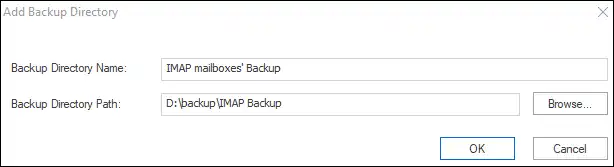
    • Select the Backup Directory, name it, and enter the desired path. Next, hit the OK
    Add a local backup directory path
    • Navigate to Backup Jobs and select IMAP server for multiple mailboxes or IMAP Single mailbox for a single account. Next, enter the server name and port number, add mailboxes, and adjust other settings as needed.
    setup comcast email in outlook
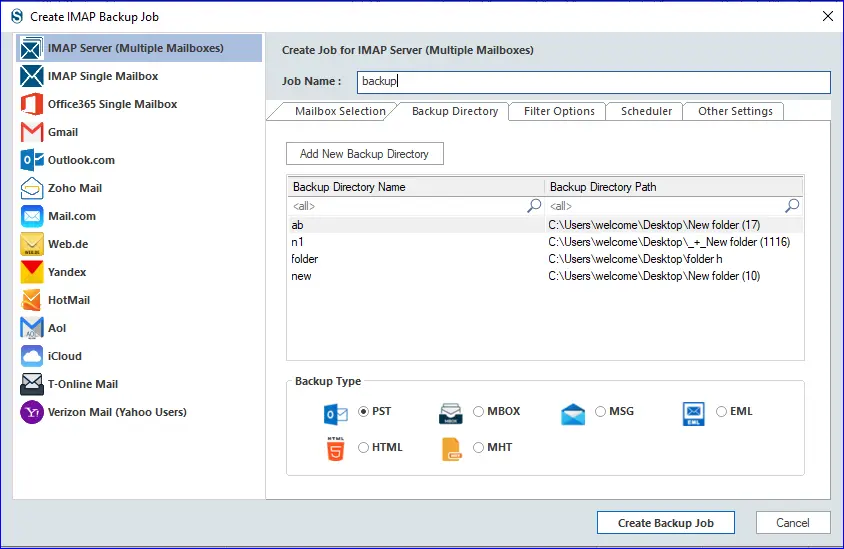
    • Head over to the Backup Directory and either add an existing one or create a new one. Then, choose PST as the Backup type to transfer your Xfinity Comcast email to an MS Outlook-compatible file.
    Enter job name and backup file format
    • Customize your selection by filtering out or adding specific items. You can also sort items by folders and dates.
    Apply filter if needed
    • From the Scheduler page, you can pick a job-run action as needed. To schedule a job, click on the Job Schedule.
    Run comcast email backup job to export emails
    • You can easily choose a specific date and time to set the backup job. This choice allows you to set up automatic backups at intervals. You can also quickly adjust duration, frequency, or occurrence. Press OK.
    Apply scheduler for later backup
    • Next, proceed with implementing the remaining adjustments on the settings page. Customize the PST file size to prevent it from becoming too large and causing problems.
    how to add comcast email to outlook
    • Finally, hit the button to set up the backup job. The backup task will be set up and executed based on the job-run schedule. You’ll receive a full report detailing the entire process.

    Related blog: How to Migrate Comcast Email to Gmail Account Professionally?

    Closing Words:

    This blog shows users the easiest way to effortlessly add Comcast email to Outlook PST files. With this tool, all your concerns vanish, ensuring your Comcast mailbox data is secure for the future. Use Shoviv Comcast Email Backup Software for an easy way to secure your Comcast emails. With its advanced features, this tool is useful to everyone, whether you are techie or not. Also, test out a FREE Demo tool and setup Comcast email in Outlook.

  • How to Import OLM Files into Outlook on Microsoft 365?

    Microsoft 365 is dominating the market and many Outlook Mac users are trying to shift to Office 365. So, the question is; are you also looking for a way to import OLM to Office 365 mailboxes? If yes, this blog will teach you how to do it. Microsoft Outlook is the most dominant email client; professionals prefer it for business or personal work. However, we all know Outlook stores data in PST file format if we use it in the Windows operating system. If you use the Outlook email client on the Mac, it stores data in the OLM file—the OLM file stores emails, calendars, tasks, events, etc.

    In this blog, we will learn a manual method and a professional solution for moving OLM files into a Microsoft 365 account. Let’s begin by understanding why users need to import their OLM files into Office 365.

    Table of Content

    Few reasons why users want to import OLM files to Office 365

    Users can have multiple reasons for wishing to import OLM to Office 365. To understand the reasons, users can read the points below.

    • Sometimes, users want to switch to Office 365 from MS Outlook, as there are various advanced facilities with Office 365.
    • Moreover, users can easily access Microsoft 365 from anywhere at any time; they only require an internet connection and a device to access Office 365.
    • Apart from this, Office 365 is a cloud-based platform, so there is a low risk of viruses, and it also offers better security features to the users.
    • Users can also easily manage their multiple tasks, as Office 365 offers various collaborative applications, such as Microsoft Outlook, Word, Skype, Exchange Online, and more.

    These reasons encourage users to import file to Microsoft 365 mailboxes. Moreover, users may have other reasons for thinking of moving to Office 365, which might vary from user to user.

    What are the solutions to move OLM files to MS Office 365?

    Users can import their Outlook Mac OLM files to Microsoft 365 using manual and professional methods. The manual method doesn’t require any third-party application to perform this task. Let us move on to discuss the stepwise procedure for the manual and professional solutions to complete this task.

     Migrating OLM to Office 365 using a manual solution

    Moving OLM files directly into Microsoft 365 using the manual method is impossible. For this, users need to convert OLM to PST and then move MS Outlook PST to Office 365. We are going to use the Gmail email client to move OLM files into PST format; let us see how to do it.

    • First of all, go to your Gmail account to set up the IMAP email account.
    • After that, you need to configure your OLM file with the Gmail account.
    Import OLM to Office 365 with Outlook Native Import-Export-1
    • Then, create a new Gmail Label and start synchronizing the Outlook Mac OLM file with the IMAP account.
    • Now, you need to configure the Gmail account in your Windows Outlook email client.
    Import OLM file to Microsoft 365 with Outlook Native Import-Export-3
    • Lastly, you have to use the Outlook Import/Export option to move the OLM file data to Outlook PST format.

    Using Outlook Import/Export option to move OLM files into Outlook PST format:

    • Launch the Outlook email client in your system and go to the File option.
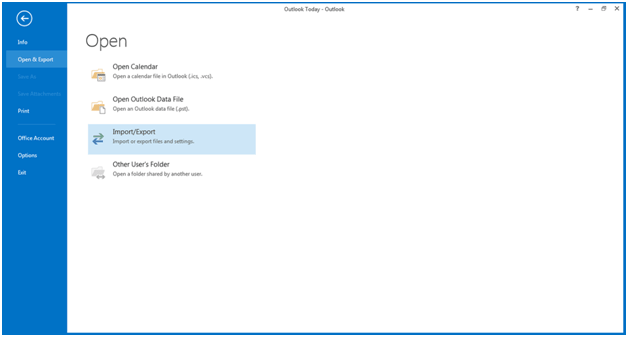
    • After that, navigate to the Open & Export and click the Import/Export
    • Then, select the Import file from another program or file option and click
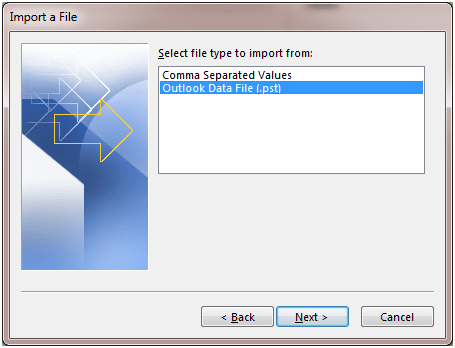
    • Choose the Outlook data file (.pst) option and tap the Next
    • Select the mailbox you want to move to PST and hit the Finish.

    After completing these steps, your OLM file will be converted to Outlook PST format. Now, you need to convert the PST file to Office 365 mailboxes. There are several ways to do this, such as drive shipping and the Azure Az Copy tool.

    Drawbacks of the manual method

    Users can face several issues when manually importing OLM to Office 365 mailboxes.

    • The manual method doesn’t offer a direct approach to importing OLM files to Microsoft 365, so the process will become lengthy and time-consuming.
    • Moreover, the process of importing PST to Office 365 is tricky. Users can face errors while moving their PST file to MS Office using the manual method.
    • Using this method, you can’t look towards moving multiple OLM files at once. Therefore, you must repeat the above steps several times for various OLM files.
    • Also, the manual solution can affect the folder hierarchy during the conversion process.

    So, if you want to proceed with this task without any risk, we recommend you use a professional solution. The next section will share a direct way to professionally import OLM to Office 365 mailboxes.

    Shoviv Office 365 Backup and Restore Tool: A Quick Solution

    The manual method has a high chance of error, and the process can become lengthy and confusing for users. Therefore, users should use the Shoviv Office 365 Backup and Restore Tool to complete this task effortlessly. This software is easy to use; users can easily use it even if they are not technical savvy. Moreover, it allows users to back up Office 365 account data in multiple file formats, including MBOX, PST, EML, MSG, etc. This tool also has a filter option; which users can use to add or remove desired items from their added files.

    This professional tool lets Mac Outlook users directly import file to Microsoft 365. This software also permits users to restore/import PST, EML, MSG, OST, etc. files into their Microsoft 365 account. This software provides a smooth experience to the users, allowing them to import OLM to Office 365 without any hassle. If users have this automation, they do not need to run an Outlook email client, as this software is an independent solution. It retains the folder hierarchy and meta properties of the data, even after completing the task.

    Conclusion

    This blog shares two methods, manual and professional, which users can use to import OLM to Office 365 mailboxes. The manual method is tricky and can take too much time to complete this importing process. Handling the manual way is a bit complicated for the users, especially for the first-timer. Therefore, it would be best if users prefer the Shoviv Office 365 Backup and Restore Tool for effortless conversion of Outlook Mac OLM files. Moreover, users can download its free demo version to their system to check its capability and efficiency. Its free demo version allows users to process the first 50 items per folder freely, helping them to know how it works before getting its full version.

  • How to Backup Emails from SquirrelMail in Windows 10?

    We know that SquirrelMail is a web-based email client using IMAP protocol to access and manage emails through a web server. Nathan and Luke Ehresman started this project in 1999. It is compatible with all standard web browsers and is available for any platform supporting PHP.

    But, even after having so many positive aspects, there is a need to backup SquirrelMail emails, and this write-up will spread light on this topic. In this blog, you will learn how to back up Emails from SquirrelMail in Windows 10 and other Windows versions.

    Moreover, we will explore the reasons for taking backups and ways to back up SquirrelMail.  First, we will discuss the reason for taking backups.

    Table of Content

    Why Do We Need to Backup SquirrelMail Emails?

    Data security is the main reason for taking backups, so it is essential to have backups. Data loss can occur for any reason, such as software glitches, hardware failures, cyber-attacks, human errors, unpredictable disasters, etc.

    1)  Data Loss Prevention- Backups help you store copies of your essential data elsewhere, reducing the risk of permanent loss in the event of various data losses.

    2) Protection Against Cyber Attacks- Backups can be a lifesaver if encrypted data or malware is compromised. At that point, users can restore their files from a backup without losing the data altogether. There is no need to fear cyber threats or pay for them.

    3) Human Errors- Human error can happen in various contexts, personal tasks, decision-making processes, professional settings, and backup data servers as a safety net against human errors.

    4) Unpredictable Disaster Recovery- Backups allow you to restore your data and resume operations with minimal downtime during a disaster that could be natural or human-generated.

    5) For Accessibility: Having data in the preferred file format allows users to access the data even if there is no reach to the server. Users can easily port, share, and access the email data.

    6) Peace of Mind- Knowing that your data is backed up gives you peace of mind. You can experiment with new software, change your system, or even take risks knowing you have a safety net.

    How to Backup Emails from SquirrelMail?

    Generally, we see that for most of the tasks, we get two ways: manual and professional. Unfortunately, to backup SquirrelMail emails, there is no manual method explained by SquirrelMail nor any other reliable resource over the internet. The best you can do is download each email one by one, but it is not practical as professionals may have millions of emails.

    Professional Method: Shoviv IMAP Backup and Restore Tool

    In this case, when we don’t have any manual method, the only option is to choose Shoviv IMAP Backup and Restore Tool. It is a professional tool developed to ease the email backup process, and it is tested and verified. Shoviv IMAP Backup and Restore Tool is designed to efficiently back up emails from various email clients, including SquirrelMail. Here are some key features of the Shoviv IMAP Backup and Restore Tool:

    • The tool is compatible with various email clients, including SquirrelMail, Gmail, Yahoo! Mail, and any that uses IMAP.
    • It allows users to quickly back up emails from SquirrelMail accounts.
    • There is no limitation on mailbox number and mailbox size.
    • Users can take SquirellMail backup in   PST, MBOX, EML,and MSG like popular file formats.
    • Moreover, you can export/restore PST/OST/MBOX/EML/MSGfiles to your mailbox.
    • It ensures email data security during the backup and restore processes. It provides encryption and other security measures to protect sensitive information.
    • Incremental export, filter options, and backup scheduling are some of its most user-centric options.
    • The tool comes with a user-friendly interface. It is easy for novice users to perform backup and restore operations quickly.
    • Shoviv provides excellent technical support to assist users with issues or questions regarding the tool’s usage or functionality.
    • This software works on Windows 10 and any other versions of Windows.

    Simple Steps to Backup SquirrelMail Emails in a Professional Way:

    Users can effectively back up their emails from SquirrelMail using the Shoviv IMAP Backup and Restore Tool, ensuring data security and availability. Here’s how you can backup SquirrelMail emails by following these steps:

    • Please start the process by installing the Shoviv IMAP Backup and Restore Tool on your system and then launching it. You will see the dashboard as in the picture.
    backup SquirrelMail Emails data
    • Click on the “Backup Directory” Designate the location for saving your SquirrelMail backup by exploring and selecting the appropriate directory path.
    Backup directory name and path
    • Go to the Backup Jobs creation interface. Tailor your selection based on your requirements. Enter a distinctive name for the job, server name, port number, and other asked details.
    backup SquirrelMail Emails
    • When adding a new backup directory, make sure to specify the backup directory path provided. Furthermore, remember to indicate the backup type; here, we opt for PST as the selected file format. You can opt as per your need.
    Backup job name and select backup format
    • Apply the date filter and the folder filter within the filtering section if required.
    Filter Email Items
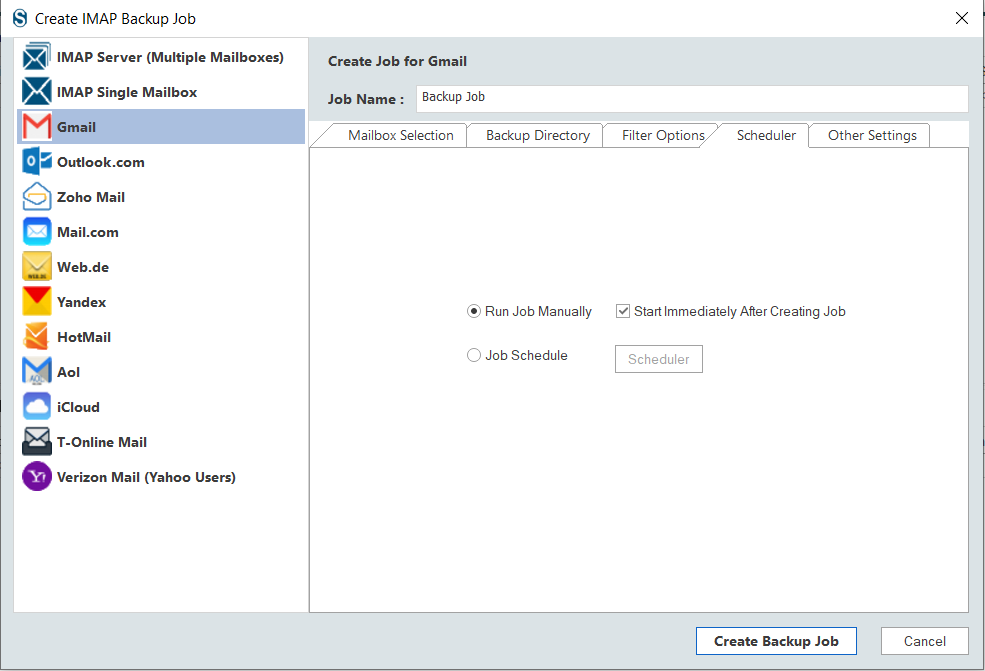
    • In the Scheduler tab, you can choose to schedule the backup job, trigger it immediately, or opt for manual execution.
    Export emails from squirrelmail
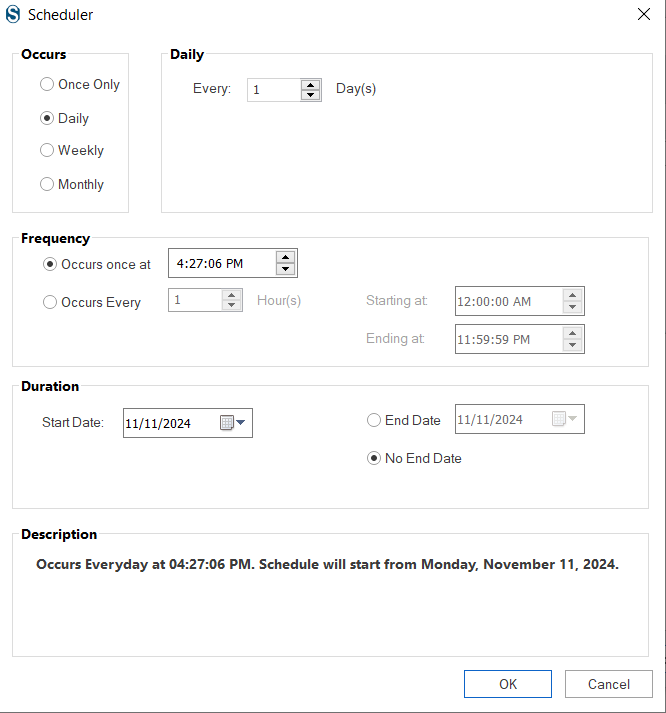
    • If you are arranging the backup job schedule, prioritize the frequencyduration, and occurrence of the backup.
    Export SquirrelMail Emails
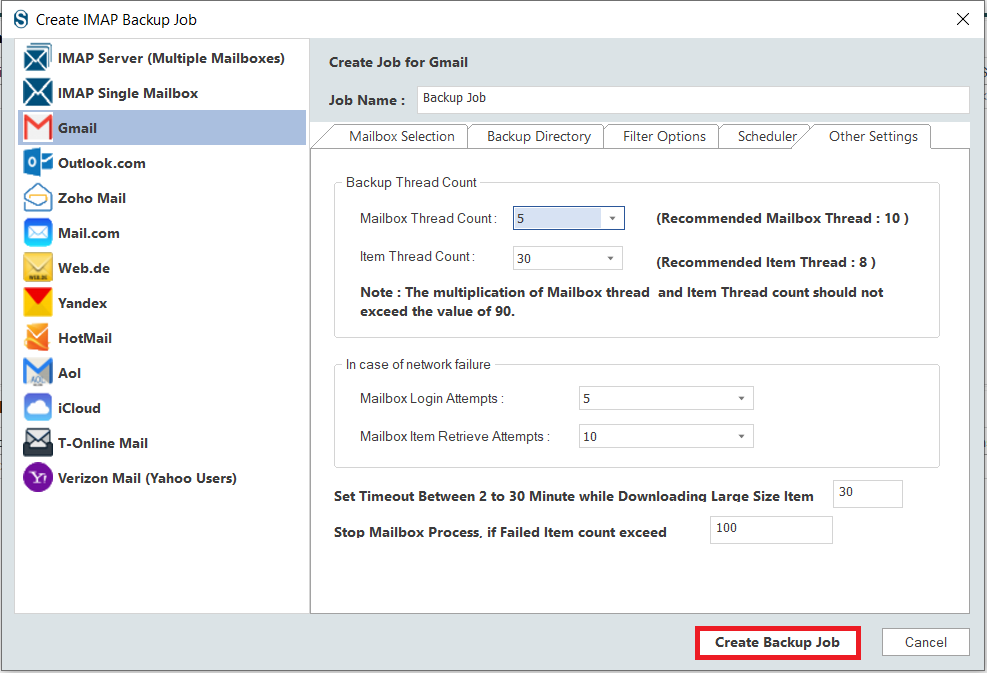
    • Finally, do other settings like setting up thread count and log-in attempts, as shown in the below image. Moreover, you can set the upper limit for the failed item count. Users can also set the size for the resultant PST file. Click on Create Backup Job after completing all the steps.
    Select Thread Count
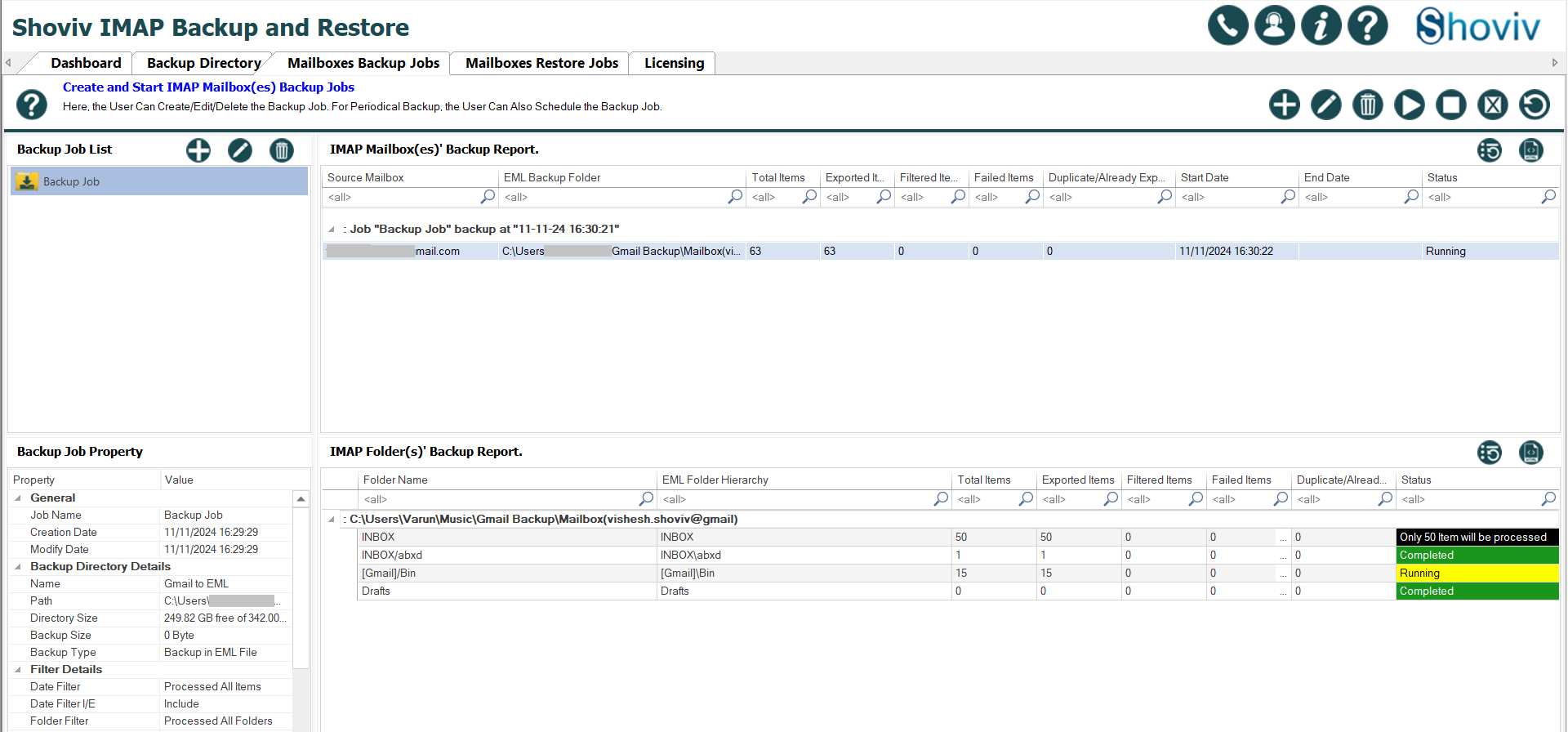
    • The process to backup SquirrelMail Emails will start as per the job-run action, and you can see a complete live report.

    Let’s Sum Up:

    This blog has covered the process of backing up SquirrelMail emails in a very comprehensive manner.  Overall, we can say that the Shoviv IMAP Backup and Restore Tool provides a reliable and efficient solution for backing up emails from SquirrelMail.  It is helping users safeguard their valuable data and ensure its availability when needed. It is a cost-effective solution for email backing, helping organizations save time and resources. A demo version of this utility is also available; install it and have a trial to backup SquirrelMail emails.

  • How do you import emails into Outlook 365 Desktop App?

    How do you import emails into Outlook 365 Desktop App?

    In the world of technology, data, especially emails, are considered a backbone of businesses, as they contain sensitive information and files. Keeping old emails managed is a significant and hectic task for organizations as they can be required in the future; you must have handled them well to be available when needed. Nowadays, technology is slowly moving towards the cloud, and Office 365 is the best and most featureful cloud-based that also provides Outlook as an email service.

    With the growing popularity of the cloud, users are now seeking a way to import old emails into Outlook, which comes as a part of an Office 365 subscription. However, the process of importing emails into Outlook is only some people’s cup of tea because the only way to move any emails into Outlook is to convert them into PST format.

    In this write-up, we’ll discuss how you can import old emails from different email services into the Outlook 365 desktop app.

    Table of Content

    Why will you need to import emails into Outlook?

    Outlook is a product of Microsoft, and since the release of Office 365, several organizations have picked it to enhance their business productivity. Outlook is also a part of Office 365, so users must import old emails into Outlook. Apart from this, there are several other reasons:

    • PST, a file format used by Outlook, is considered the best file format to store data, and users can encrypt their PST files with a password, which also makes it secure.
    • Your current email account may be out of space, and you want to save your emails in a local drive. The PST is the best option for you.
    • Outlook allows creating profiles for maximum email services, including Office 365, Exchange Server, Thunderbird, etc. You may want to import old emails into these email services or from these email services.

    These are only a few reasons why some users might need to import old emails into Outlook. If you didn’t find your reason here, then don’t worry. Every business and individual can have different reasons. Now, let’s know how you can import email into Outlook.

    How to Import Email into Outlook?

    The first and possibly most straightforward way to import old emails into Outlook PST is using Outlook’s import/export wizard. As mentioned above, Outlook allows the creation of an Outlook profile for most email clients, and you can simply create an Outlook profile and use the import/export wizard to import email into Outlook PST format. Let me show you the complete process.

    Note: We have divided the process into 2 phases so it will be easy for you to understand and follow.

    Phase1: Create an Outlook Profile for the Email Account

    In this phase, we’ll create an Outlook profile for your account from which you want to import your old emails.

      • Open Outlook and click on the Add Account option.
      • Select the check box adjacent to Manual setup or additional settings and click Next. 
      • Provide the account credentials from where you want to import the emails. Enter the Server NamePort, and Encryption method. Click Next.
      • Outlook will run the credentials testing; if everything goes right, it will create an Outlook profile for your account.

    Phase2: Import data into Outlook PST File Format

      • Open Outlook and log in with the profile we created in the first phase.
      • Now go to the File, select Open & Export, then click Import/Export.
      • Select Import from another program or file option and click Next. 
      • In the following dialogue, select Outlook data file .pst as file format and proceed by clicking on Next. 
      • Following, select the location to save the resultant PST file.

    It is a simple process that allows you to import emails into Outlook 365’s PST format and access them with Outlook. It is a free-of-cost method but not free from limitations.

    The method only allows importing emails from one email account. Hence, if you have a large number of emails/mailboxes to import, you’ve to repeat the same process over and over. Apart from this, you cannot filter out unwanted emails from the process.

    One-stop solution to import emails into Outlook PST: Shoviv IMAP Backup and Restore Tool

    Shoviv IMAP Backup and Restore Tool is specially developed to backup or export IMAP server-based email clients into PST format. The software can import more than 15 email clients’ inboxes into Outlook PST format, and if required, you can also restore these PST files to mailboxes. Some popular email clients you can export into PST are Zoho, Gmail, Yahoo, Office 365, Exchange server, Hotmail, AOL, etc.

    Some of this tool’s other features are as follows: 

    • The software offers a filter option based on several criteria (Date range, folder filter) to include or exclude specific emails from exporting into PST format.
    • You can add multiple mailboxes of any size to the process and import old emails into PST without interruption and repeating the same process.
    • The software displays a complete log report of the process so you can ensure what emails have been imported into PST format.
    • You can split the resultant PST into the desired size. Creating small PST files also saves them from corruption.
    • The software is compatible with all versions of Outlook and Windows operating systems.

    These are some of the many features the Shoviv IMAP Backup and Restore Tool offers when users import old emails into Outlook PST format. For a better evaluation and to know it’s working, we recommend you install the free version of the software that allows processing the first 50 items per folder without any limitation.

    Conclusion

    Data plays a crucial role in ensuring the continuous productivity of business; in the technology world, emails are the most important. However, keeping old emails safe and managed is a troublesome task. Shoviv’s IMAP Backup and Restore Tool allows users to import old emails from different email clients into Outlook PST format. We have tried the software in several import scenarios, and it has worked in all of them. Besides this, several businesspersons and organizations use this tool to manage their old emails and move them from one source to another without hassle and glitches.

  • What should you do if Gmail Forwarding is not working?

    Are you dealing with the ‘Gmail Forwarding Not working’ issue? If yes, then don’t worry; it is common that Gmail users, particularly professionals, need help to forward emails to other addresses. Pause your search and dive into this guide to discover the top tricks for fixing Gmail forwarding not working issue

    Gmail is a popular email service that offers a powerful platform for quickly composing, sending, receiving, and managing your messages. Users can simply log in to Gmail on their mobile app or browser and manage all their emails directly from the cloud.

    Table of Content

    Features Offered by Gmail Platform:

    • As one of the top email clients, Gmail by Google lets you effortlessly write, send, receive, and delete emails.
    • Google’s Gmail is a widely used email platform that works across multiple systems like Windows and Android. It is known for storing vast amounts of data and enabling seamless digital communication.
    • With superior spam filtering, virus defense, and more, Gmail offers more security than others.
    • Gmail is a top email client with features including email filtering, sync capabilities, spam protection, reminders, built-in virus safeguards, scheduling, and recurring email options. These features provide a reliable and secure platform for your email needs. With a range of powerful features, it’s among the top free email clients, offering services that often come at a price with others.
    • Gmail offers a free, web-based platform for sending and receiving emails, accessible through its site or third-party apps via IMAP and POP protocols.

    Gmail’s email forwarding feature is a convenient tool that streamlines the task of automatically sending emails from your account to other addresses, providing a sense of relief in managing multiple accounts and setting up temporary Gmail forwarding emails to another domain address.

    Why is Gmail forwarding not working?

    Gmail’s email forwarding lets you effortlessly send messages from your inbox to other addresses, streamlining your email management. It helps you handle various accounts and set up temporary Gmail forwarding emails to another domain address. However, problems with message forwarding in Gmail can be a significant inconvenience during email transfer. Below are several possible causes why Gmail isn’t forwarding emails correctly; let’s explore them.

    Some Common Reasons Behind the Gmail Forwarding Not Working Issue:

    • Wrong email address
    • Internet connectivity issue
    • Improper configuration of Gmail
    • Disabled Gmail IMAP/POP setting
    • Rules in email
    • Sudden outage issues
    • Conflict with IMAP/POP setting
    • Windows firewall
    • A corrupt PST file
    • Lack of expertise or knowledge
    • Saving all emails in the spam folder instead of the main inbox folder for any reason.

    Now that you know why Gmail isn’t forwarding emails, let’s investigate how to fix it.

    How to Fix ‘Gmail Forwarding Not Working’ issues?

    Discover authentic and effective methods to troubleshoot the ‘Gmail Forwarding Not Working’ issue with manual and professional help.

    Manual Workarounds to Fix Gmail Not Forwarding Emails

    There are a few top manual techniques to address the issue of Gmail forwarding needing to be fixed. Check out these top methods to resolve the email forwarding issue and see if they help.

    Method 1: Check Stable Internet Connection

    An unstable internet connection makes it challenging to send emails seamlessly through Gmail or any email service. Ensure you have a solid network connection to prevent problems with your Gmail not forwarding emails.

    Method 2: Verify Gmail Forwarding Setting

    Using an incorrect email address for forwarding can lead to a chaotic inbox, making it hard to handle all your emails efficiently from one account. To fix minor issues, re-check the forwarding setting and enter the correct email address. Follow these quick steps to clear up temporary glitches.

    • Go to your Gmail and open it.
    • Navigate to the ‘Setting’ area.
    • Tap on the ‘View all Settings’ option.
    • Go to the ‘Forwarding and IMAP/POP’ section.
    • Then, enter a valid ‘Email Address’ for forwarding.
    • Last, hit the ‘Save Changes’ button.

    Method 3: Check All Email Filter Rules

    If the forwarding settings look good, but the problem continues, check the filters and rules to fix the Gmail auto-forwarding issue. Sometimes, the filter settings can clash with the forwarding option. Follow these steps to access your Gmail filters.

    • Launch your Gmail account.
    • Navigate to the Settings.
    • Click on ‘View all Settings.’
    • Go to the ‘Filter and Blocked Addresses’ section.
    • Then, confirm that no ‘Delete It‘ filters are active.

    Method 4: Check Gmail IMAP/POP Enable Settings

    If your Gmail forwarding isn’t working, check that IMAP or POP settings are turned on for incoming emails. To fix the issue, follow the below steps.

    • Access Gmail via your browser and log in to your email account.
    • Go to the main menu and choose Manage label option.
    • Then, navigate to Forwarding and IMAP/POP.
    • Select ‘Enable IMAP‘ or ‘Enable POP,’ and click on Save Changes to apply.

    Method 5: Delete Outlook Email Rule

    Specific Outlook rules might block Gmail messages from being forwarded to your Outlook account. Remove the Outlook rule to get Gmail emails forwarding again. Follow these simple steps:

    • Open your Outlook app.
    • Tap on the File tab.
    • Choose the Manage Rules & Alerts option.
    • Here, you’ll see the Rules and Alerts window appear.
    • Pick the created rules.
    • Next, hit Delete and select OK to clear all created regulations.

    Method 6: Sudden Gmail Outage

    A sudden Gmail Outage issue frustrates users; it can stop forwarding Gmail emails without warning. These annoying errors often pop up due to server downtime or short-lived glitches. So just be patient while server outage issues aren’t fixed. Also, check the server before starting the email forwarding process.

    Method 7: Ensure the Forwarding Email Account Not Full

    If the Gmail account designated for forwarding is low on storage, the email forwarding feature may need to be fixed. It’s best to check that the account is still within its storage limit. With this option, forwarding new emails to multiple Gmail addresses is a breeze for users.

    Method 8: Temporary Turn Email Forwarding & IMAP/POP Configurations

    Sometimes, IMAP/POP settings can create conflicts with email forwarding settings. The problem might stem from how Gmail email forwarding is set up. To fix Gmail email forwarding issues that are not working, turn off the IMAP/POP settings temporarily. Also, disable or re-enable the Gmail email forwarding option. This quick troubleshooting tip can fully resolve the issue with ease.

    Method 9: Clear the Browser’s Corrupted Cache Data

    Browser issues can sometimes disrupt Gmail’s email forwarding configurations. Common browser glitches may be due to broken cookies, outdated updates, or troublesome extensions. Remember to clear your cache and cookies history to enable seamless Gmail forwarding. It’s helpful to get rid of those browser issues. If the problem persists, consider using a different web browser.

    Method 10: Having a Sufficient Knowledge or Expertise

    Mistakes happen when users need to configure Gmail forwarding correctly. Insufficient skills and understanding could cause it. More know-how and proficiency might lead to data loss. Therefore, you are advised to reconfigure the settings and turn on Gmail email forwarding. Also, you need to have a better understanding of technical expertise.

    Method 11:  Restart Your Devices

    Sometimes, your device gets overheated due to prolonged usage and active background applications. It might affect the performance of the Gmail app. So, restart your device, and the problem will disappear.

    Method 12: Update Your Gmail Application

    To keep issues at bay, update your Gmail app right away. Here is the solution for you:

    • Android users, just head to the Google Play Store app.
    • Visit the App Store on your iOS device to find out if there’s a new update for the Gmail app.

    Restrictions of Manual Techniques:

    • Handling large amounts of data makes it a time-consuming and tiresome task.
    • Manual fixes for Gmail forwarding are generally effective only for minor problems.
    • Security isn’t assured, and data could be lost.
    • Required enough technical expertise.

    Whenever you don’t resolve the issues of ‘Gmail Email Forwarding is Not Working,’ even using these manual techniques. Then, opt for professional solutions. Here, you can grasp the issue and get expert support.

  • How to Export Gmail Emails to EML Format?- A Stepwise Guide

    Gmail is a prominent email client worldwide in small and large organizations. For some reason, most users want to export Gmail emails to EML format. Therefore, users should focus on this professional write-up to understand different approaches to saving or downloading Gmail emails to EML files.

    Whether you want to take your Gmail emails to EML for migration purposes or for any other legal reasons, applying an easy solution is a must. We know the EML format is supported by almost every email client. So, it is an easy and instant way for users to export or download Gmail emails to EML file format to move emails to another mail client.

    We will elaborate on two solutions: a manual method and an automated Gmail backup tool to save emails from Gmail accounts to EML file formats. Know the stepwise working procedure and find the easiest way to save emails from Gmail to EML files by reading this write-up.

    Table of Content

    What are the advantages of saving Gmail emails to EML format?

    EML format is widely supported by various email clients, including Incredimail, Thunderbird, Microsoft Outlook, Apple Mail, etc. That is why it becomes beneficial for users to export Gmail emails to EML file formats; let us understand some of them.

    • When users export Gmail emails to EML format, it helps them to quickly move their data to other email clients that support EML format.
    • Moreover, users can also access their email offline if they have all their Gmail emails in EML format.
    • Having Gmail emails to EML files allows users to avoid unexpected future chaos and securely keep a backup of their emails.
    • As an EML file stores a single email, it is easy for users to share with others.
    • The EML file is organized in folders and sub-folders, giving better control over the emails even without the internet.

    These are the benefits of why users look to export Gmail emails to EML file format. Now, we will focus on the possible solutions to effectively save Gmail email to EML format.

    Ways to save Gmail email to EML file format

    Here, we look at the manual and professional third-party solutions. In the manual method, we use the Gmail email client to download Gmail email to EML format. Then, we will share an alternative solution, the Shoviv Gmail Backup and Restore Tool, to accomplish this task rapidly.

    Now, we first explore the manual method of exporting Gmail emails to EML formats using the Google Gmail web-based application.

    1. A manual way to download Gmail emails to EML files

    This method will help only download a single email to EML format at once. However, the steps are easy, and even new users can follow them without any hassle to export Gmail emails to EML formats. Let us share the stepwise guide:

    • Go to your web browser, search for Gmail and login to your account.
    • Then, navigate to the folder and open the email that you want to export in EML file format.
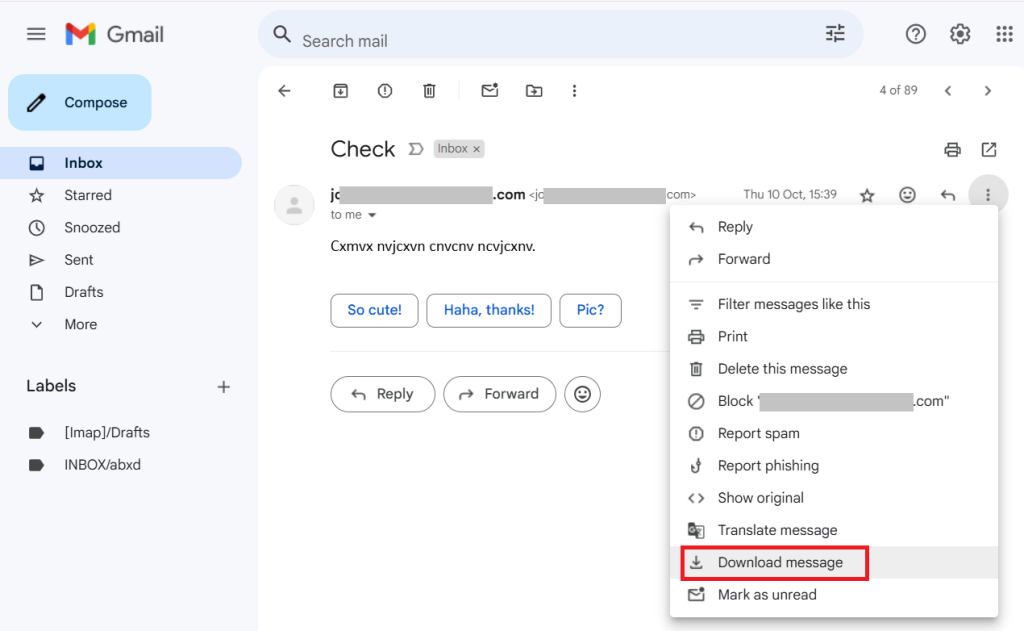
    • After that, tap the three dots and hit the Download message button from the options.

    These simple steps will take your Gmail email into EML format. Before using this solution, note that you can only save a single email to EML format at a time.

    Limitation: Suppose you have 1,000,000 emails to save into EML format; then you need to repeat these steps 1,000,000 times to download all Gmail emails to EML files. So, this process can become time-consuming and confusing for users when using the manual solution.

    Let us move to the alternative tool for exporting Gmail emails to EML format without any hurdle.

    2. Shoviv Gmail Backup and Restore Tool to save Gmail email to EML format

    Users can use the Shoviv Gmail Backup and Restore Tool to export Gmail emails to EML without any limitation. This software allows users to export Gmail emails into various file formats, including EML, PST, MSG, MHT, etc. It works on the job-based process, allowing users to process multiple backup/restore jobs at once.

    This software also allows users to save their Gmail emails in PST format without any limitations on size and email count. New users can also save Gmail emails in EML format using this professional software.

    It offers a filter option that users can use to choose selected items from Gmail using the date and folder criteria. This tool also has a default incremental export feature to resume the interrupted process and prevent data from duplicating items.

    Guide for exporting Gmail emails to EML file format

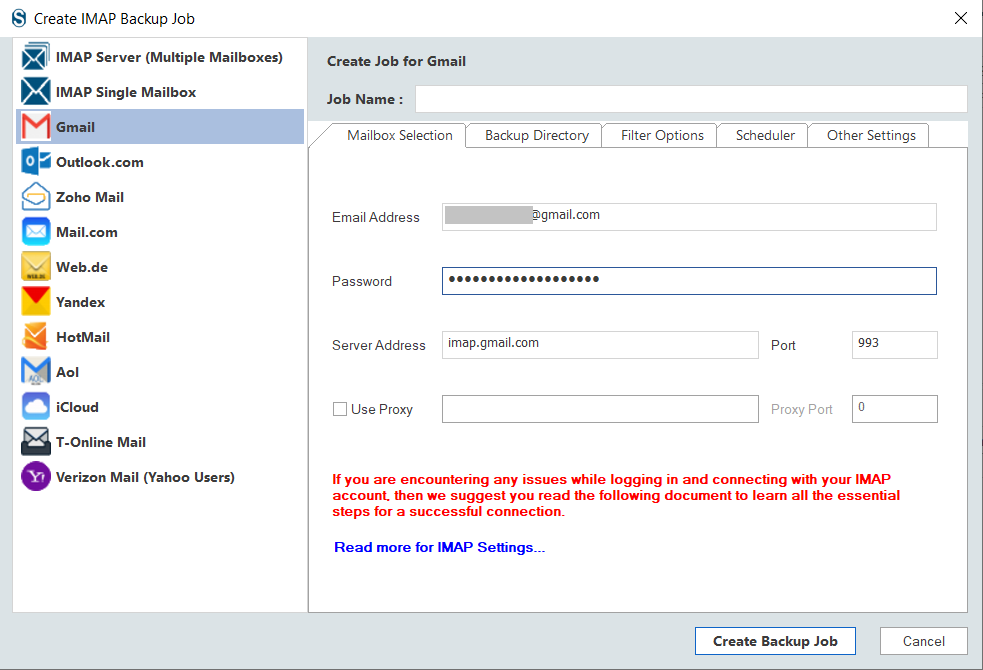
    • Open the Shoviv IMAP Backup and Restore Tool (Shoviv Gmail Backup Tool).
    • Then, select Gmail from the left-side options.
    • Enter your Gmail address and App Password. (click here to learn how to create an App Password)
    Create a backup for for Exporting Gmail Emails to EML file format
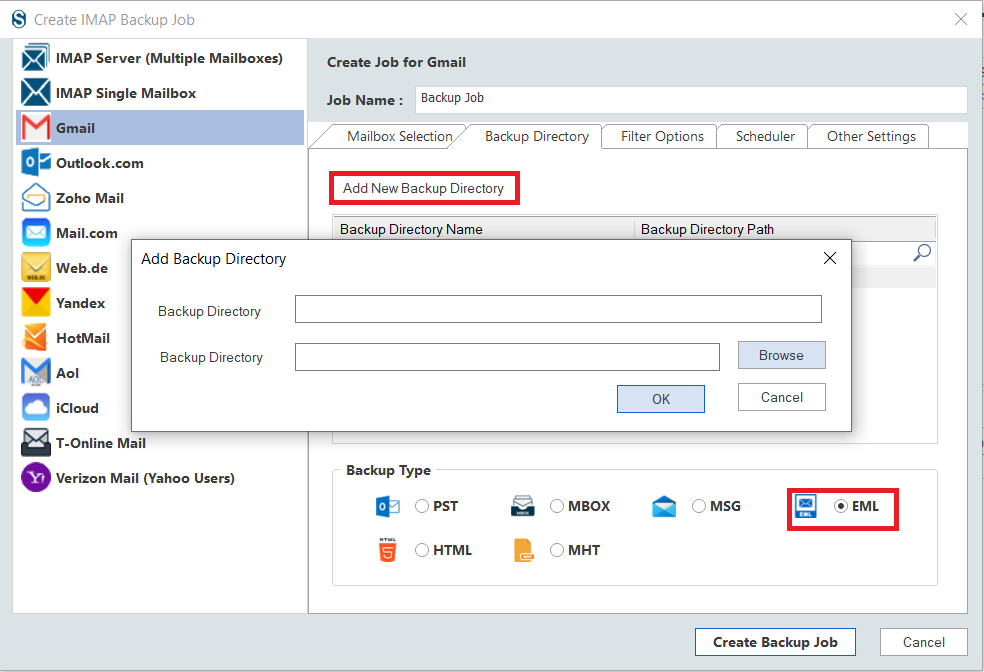
    • Click the Backup Directory button, enter the job name, select EML file format from the options below, and hit the Add new Backup Directory option.
    Choose Export format
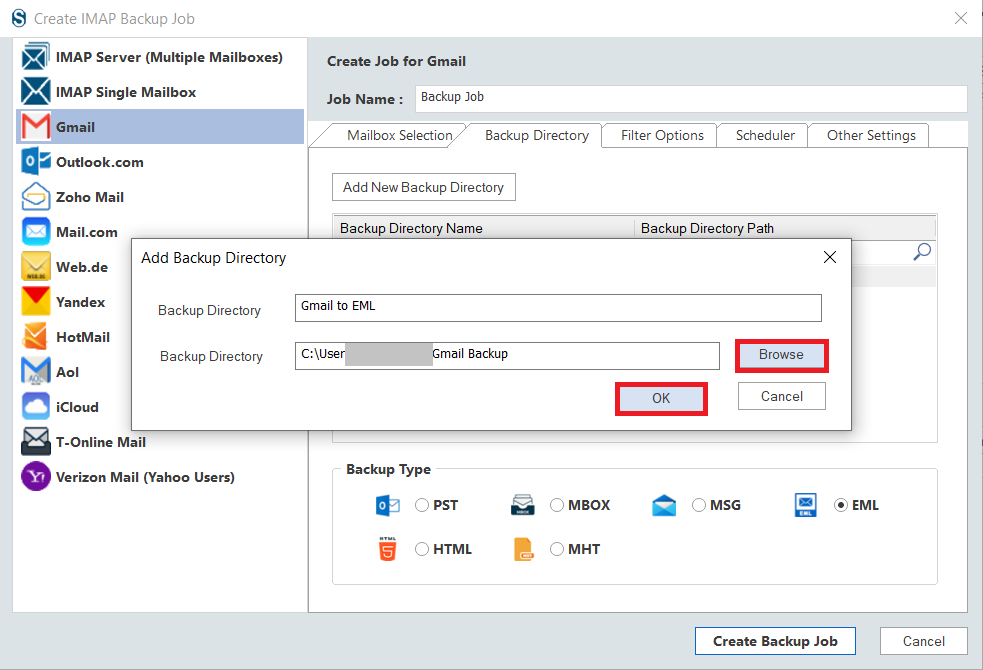
    • Give a name to the Backup Directory and tap the Browse button to select the location where you want to save the resultant EML files. Then, click the Ok button.
    Backup directory name and path
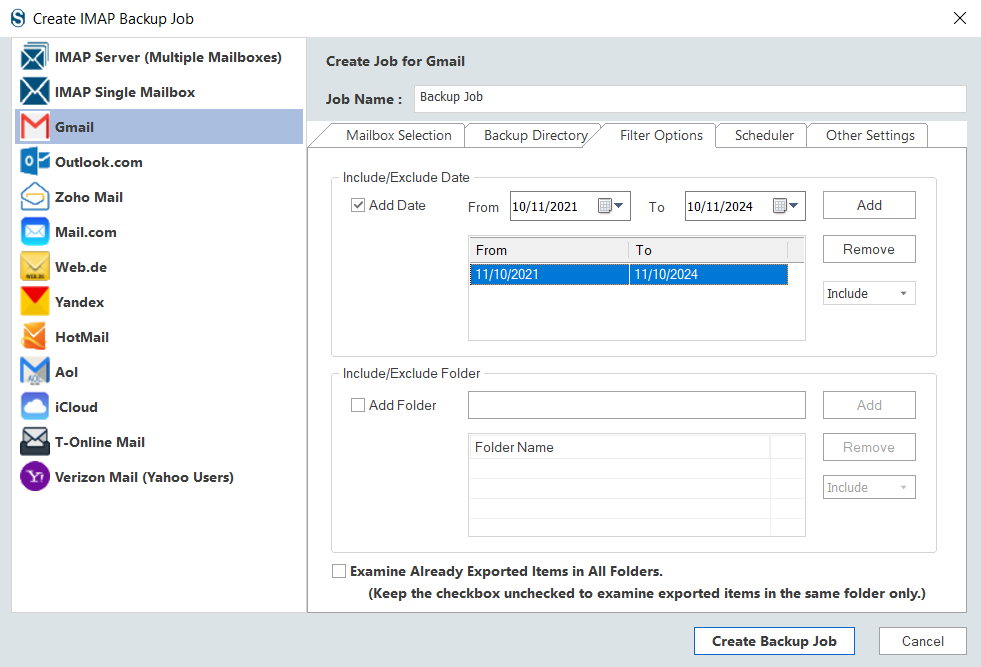
    • Use folder and date-wise criteria to filter items for adding or removing from the process. After that, check the Examine Already Exported Items in All Folders option to prevent duplicate items.
    Filter your backup data
    • Next, kindly move to the Scheduler option and check the Start immediately after creating the job option to run the job once it is done.
    Start backup job immediately of run for later
    • You can also choose the Job Schedule option to set backup on a daily, weekly, monthly, or specific date and time.
    Schedule your files backup as you wish
    • Then, modify other settings, like thread item count, max login attempt, etc. and click the Create Backup Job button.
    Thread count
    • The tool will start saving Gmail emails to EML formats.
    Start exporting Gmail emails to EML
    • Go to the location you selected to save the resultant EML files and check if the data has been exported.
    Locate Saved EML files path

    It’s your turn now!

    This write-up has taught two proven solutions to export Gmail emails to EML file formats. Now, the decision is yours: Which solution do you prefer for downloading or saving their Gmail email in EML format? Professionals always recommend the Shoviv Gmail Backup and Restore Tool for a trusted and reliable approach. Moreover, users can also try its free trial version in their system to understand the stepwise working of the tool.

    The free trial version of this software permits users to process the first 50 items per folder from each folder of the Gmail account. This will make it easier for users to know the tool’s functionality and capability before having hands-on experience with its full version.

    Feel free to ask queries; our support team is available 24/7 to assist users who have any queries related to the software or their tasks.

  • How to migrate email from CenturyLink to Gmail?

    The current time is the time of new and updated technology that simplifies our daily routine tasks, such as email management, collaboration, etc. That is why most users search for information on how to migrate email from CenturyLink to Gmail seamlessly and accurately. The internet is laced with the different solutions available for transferring CenturyLink email to Gmail, but having an effortless approach for moving essential emails from CenturyLink is a must.

    The common reason behind this transfer is the user-friendly interface of Gmail and its advanced features. Moreover, Gmail is better at providing email security and preventing account from the scammed emails. On the other hand, CenturyLink webmail lacks better features, especially for email security.

    Table of Content

    CenturyLink and Gmail email clients: A Short Overview

    CenturyLink (now Lumen Technologies): CenturyLink webmail is an email service that allows users to manage their emails, collaborate and communicate with clients and colleagues. It is basically a telecommunication company. In addition, CenturyLink offers its email service to those who use its broadband or telecommunication services. It provides limited integration with other productivity tools and services.

    Gmail: Gmail is a web-based email client offered by Google. It is equipped with the latest features, like robust search capability, powerful security features, etc. Moreover, Gmail can easily integrate with other tools and services, including Google Docs, Calendar, Drive, and more. It provides free 15 GB storage for each account to save emails, drive data, and Google Photos.

    Why do users transfer CenturyLink email to Gmail?

    Gmail made users switch from CenturyLink webmail to it, as it offers better security features, a quick spam emails filtering option and many more. Let us discuss more of them to know why they transfer emails from CenturyLink to Gmail accounts.

    • The GUI of Gmail is better and more straightforward as compared to CenturyLink webmail.
    • Moreover, Gmail has advanced features that allow it to integrate with other services and productivity tools.
    • Each Gmail account gets 15 GB of free storage to manage their essential data, like emails, photos, files, documents, contacts, etc.
    • Gmail is a free email client, and most importantly, it is a universally recognizable and trusted solution.
    • It offers a powerful scam email filtration and security facility. That includes two-factor authentication, protection from phishing emails, etc.
    Users migrate CenturyLink email to Gmail for a variety of reasons. Above, we shared common reasons for moving emails from CenturyLink to the Gmail account.

    A free solution to forward emails from CenturyLink to Gmail

    This guide will focus on the two best practices that users can use to transfer CenturyLink email to Gmail accounts. We will discuss the free manual method to take CenturyLink webmail data to the Gmail environment.

    Users must use the Gmail web-based email client to forward CenturyLink email to Gmail for free. The steps are as follows for manually running the CenturyLink email to Gmail migration task.

    • Log into Gmail using your account details.
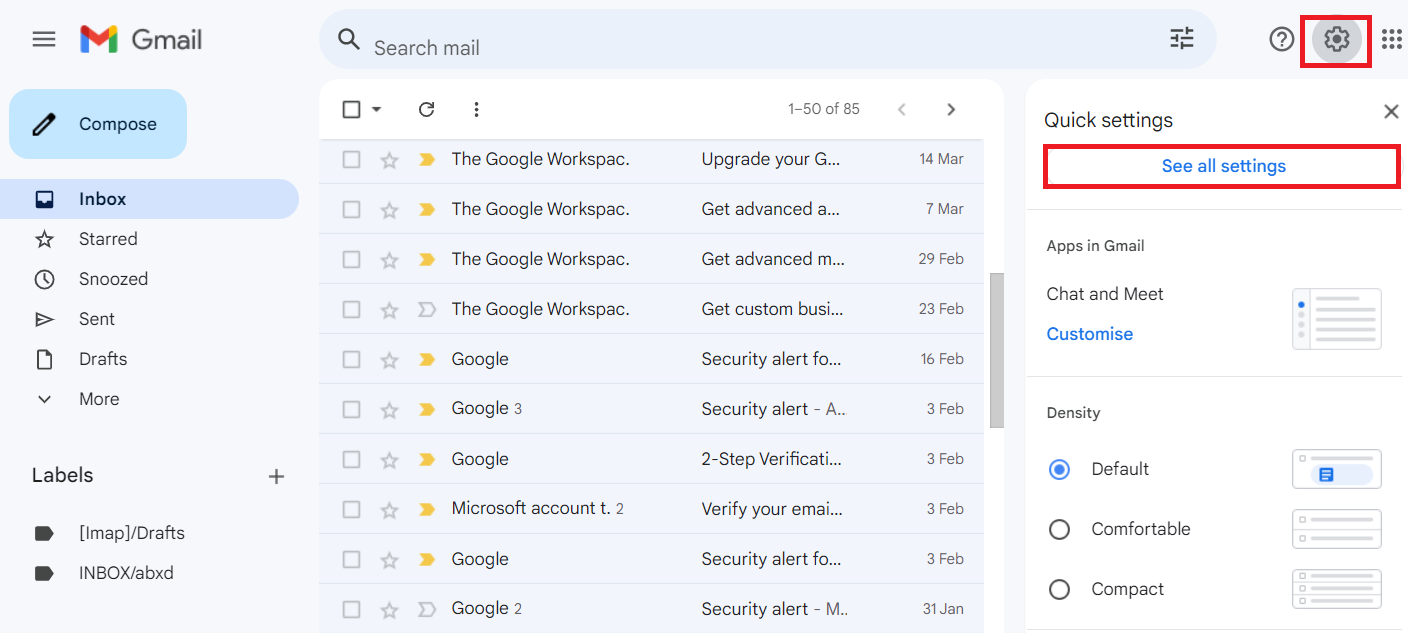
    • From the right corner, choose the Settings icon and click the See all Settings option.
    free forward emails from CenturyLink to Gmail
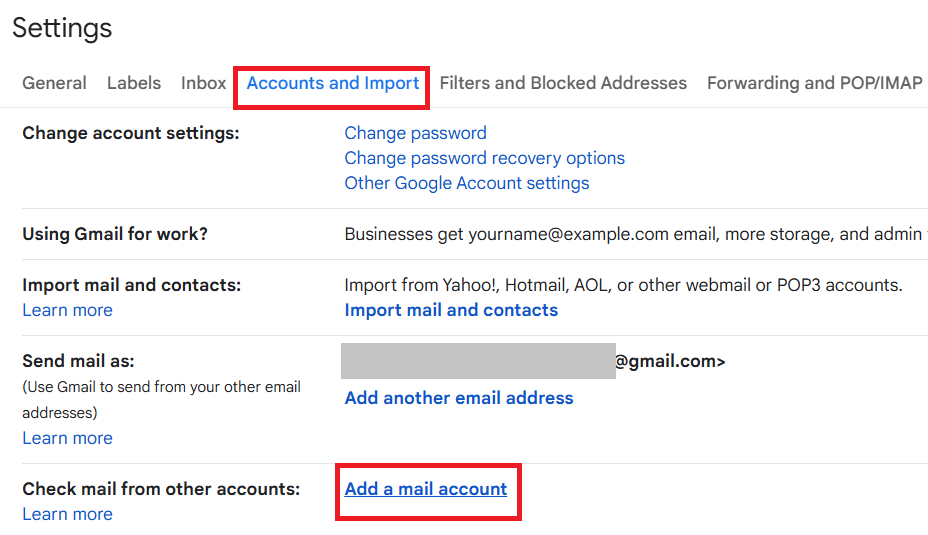
    • Then, navigate to the Accounts & Import and click the Add a Mail account option.
    free forward emails from CenturyLink to Gmail2
    • After that, type your CenturyLink email address and hit the Next button.
    • Now, choose the Import emails from my other account (POP3) and continue with Next.
    • Enter your CenturyLink username and password. Then, tick the Leave a copy of Retrieved Message on the Server checkbox.
    • In the POP server, fill out pop.centurylink.net and tap the Add Account button.
    • Lastly, pick the No option and go with the Finish button.

    This method can be challenging for new users, as it only exports the INBOX folder from CenturyLink to Gmail accounts. It can take too much time, depending on the size of the emails you are moving from CenturyLink to Gmail. For a quick and effortless migration, users can read the upcoming section, where we will share a reliable and trusted way to move emails from CenturyLink to Gmail environments.

    Which is the best way to run the CenturyLink to Gmail Migration task?

    Shoviv IMAP to IMAP Migration Tool is the seamless way to migrate emails from CenturyLink to Gmail. This software works without limitations and processes items from all CenturyLink folders to the Gmail account. It keeps the folder hierarchy and data integrity of emails when migrating from CenturyLink email to Gmail. Moreover, this tool has a simple user interface, letting new as well as experienced users easily access it and complete this transfer task.

    This software offers a filter option that users can apply to include or exclude desired items from CenturyLink when moving into the Gmail account. It has a default Incremental Export feature to avoid duplicity and resume the process from where it was stuck last. In addition, users will not be restricted from processing large items using this professional CenturyLink to Gmail migration tool.

    Steps to migrate from CenturyLink to Gmail

    • Install and run our IMAP to IMAP Migration Tool.
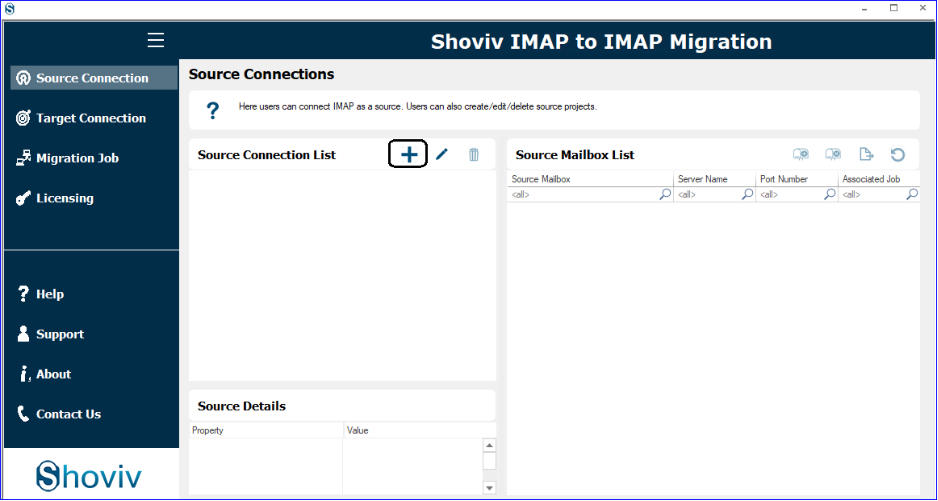
    • Then, click the Source Connection tab to connect to the CenturyLink webmail.
    CenturyLink to Gmail1
    • After that, tap the Add icon and create a project for the CenturyLink to Gmail migration.
    CenturyLink to Gmail migration
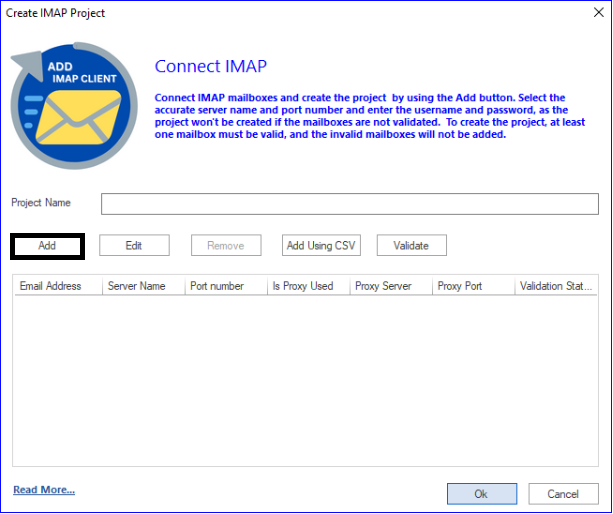
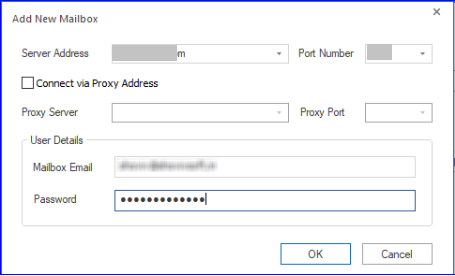
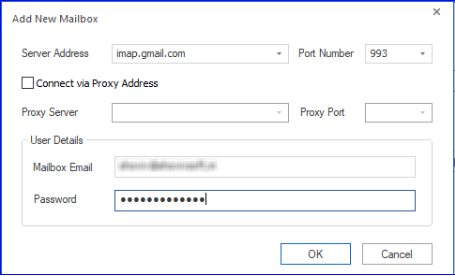
    • Enter a project name, click the Add button to add a mailbox, and type other required details, like server address, mailbox email, password, etc. Then, click the OK button.
    CenturyLink to Gmail migration job3
    • Connect to the target and click the Add button to create the target project.
    • Select the Add button to add a mailbox and enter needed details such as mailbox email, port number, password, etc. After creating the target project, hit Ok.
    CenturyLink to Gmail migration3
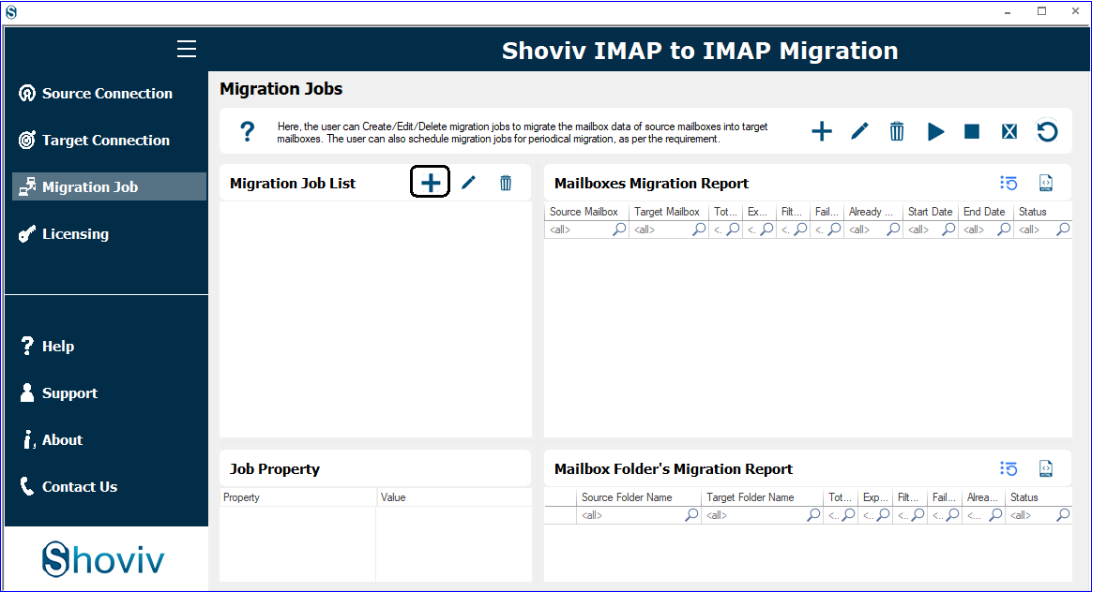
    • Go to the Migration Job tab to create a CenturyLink to Gmail migration job.
    CenturyLink to Gmail migration4
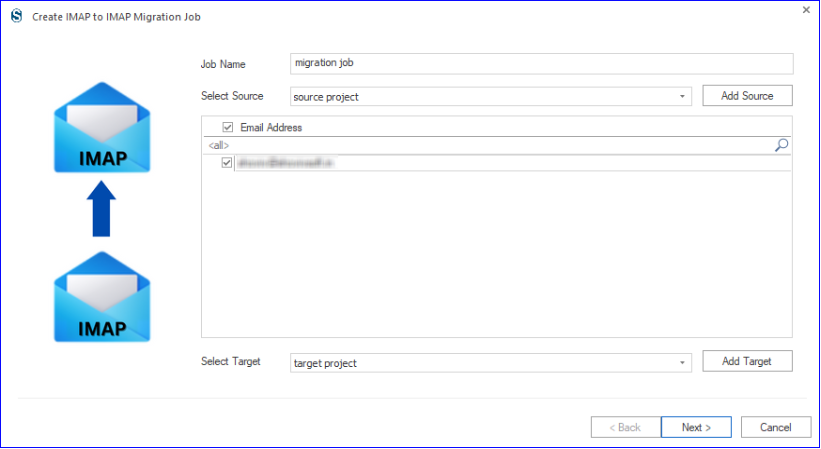
    • Then, enter the job name, select the source and the target (that we created in the above steps), select an email address and click the Next button.
    migrate email from CenturyLink to Gmail5
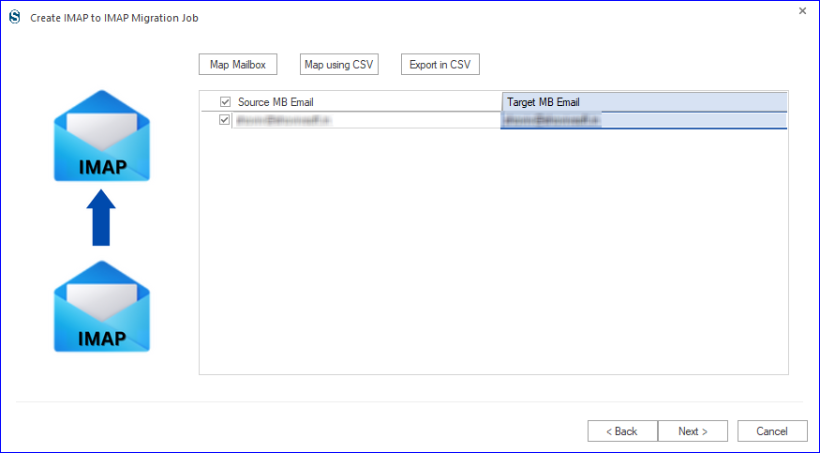
    • Map the source mailbox to the target mailbox, and after mapping, click Next.
    migrate email from CenturyLink to Gmail6
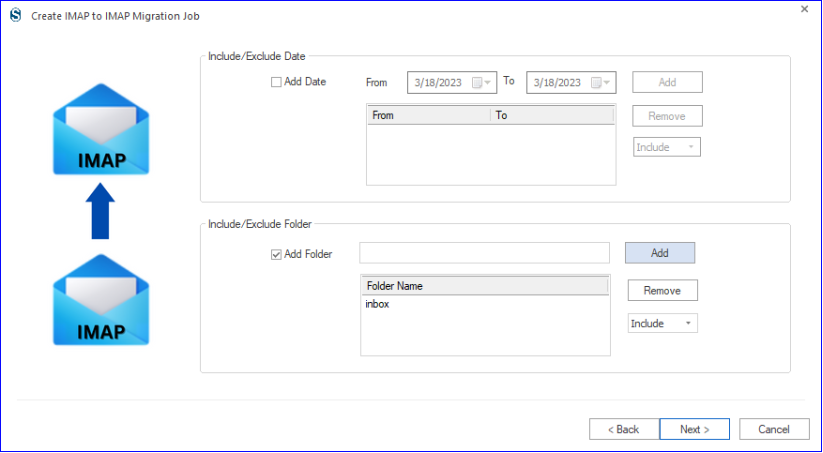
    • Apply filters by the date and folder to avoid undesired items or add only selected items in the process. Tap Next.
    migrate email from CenturyLink to Gmail7
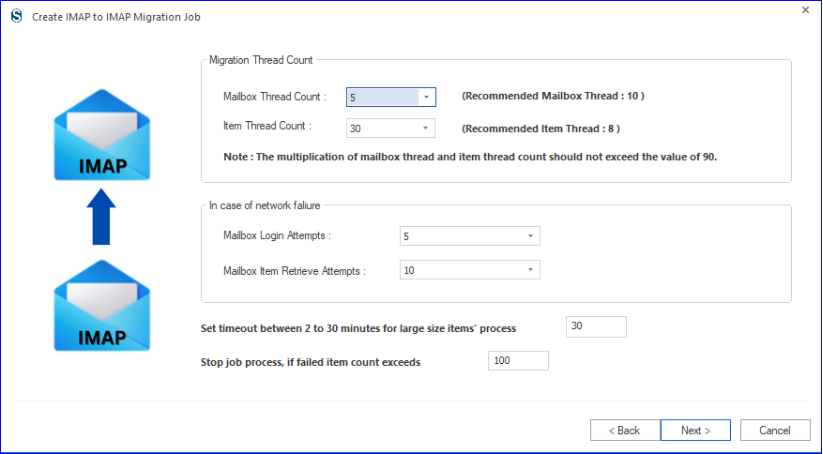
    • After that, set up other options like mailbox thread count, failed items limit, etc., according to your need and click Next.
    migrate email from CenturyLink to Gmail8
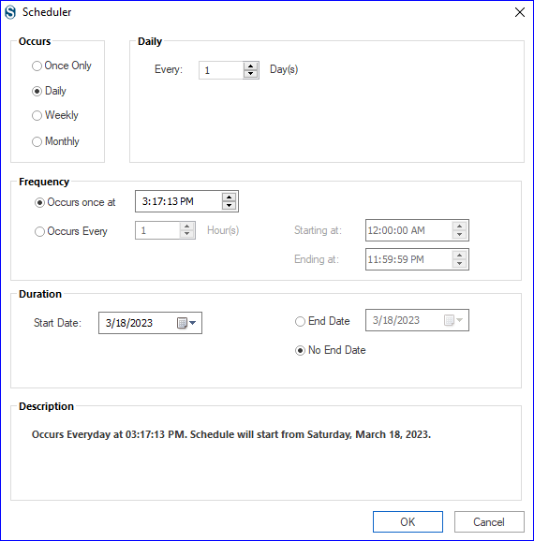
    • Schedule the Migration Job if you want; it allows you to perform migration on a regular basis, like daily, weekly, monthly or at any specific day and time. Click Ok.
    migrate email from CenturyLink to Gmail9
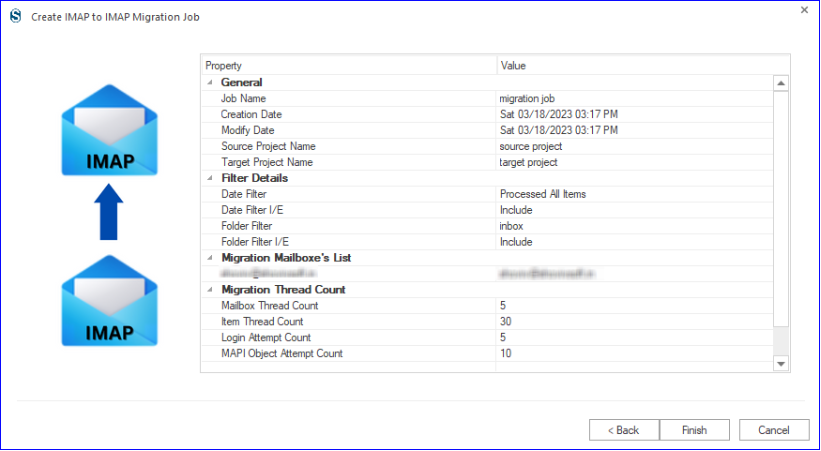
    • Review the CenturyLink to Gmail transfer settings and tap the Finish button.
    migrate email from CenturyLink to Gmail10
    • Once done, run the job to migrate email from CenturyLink to Gmail without limitations.

    Bringing It All to a Close!

    This professional write-up has described two solutions to migrate CenturyLink email to Gmail accounts above. The one from the above-shared solutions is a manual method, which can be time-consuming and fail to migrate all folders. On the other hand, the other solution is the Shoviv IMAP to IMAP Migration Tool, a simple way to transfer CenturyLink email to the Gmail environment.

    This software also has a demo version that users can use on their system to learn more about its functionality and working procedure. Its free demo version can process the first 50 items from each folder of the source mailbox to the target.

    Have any queries regarding the task and our IMAP to IMAP Migration tool? Contact our technical support team, which is available 24/7 to assist users worldwide.

Enter To Win
Privacy Overview

This website uses cookies so that we can provide you with the best user experience possible. Cookie information is stored in your browser and performs functions such as recognising you when you return to our website and helping our team to understand which sections of the website you find most interesting and useful.